Upsetguy
Members
-
Joined
-
Last visited
-
Upsetguy changed their profile photo
-
i dont have the disc at, i duno if he bought it or not he just had the disc i asked him to give me so i can install it too then i gave him back, the game was working fine till i installed that green globin mode after that i couldn't play it pls help me
-
I installed it from my friend dvd
-
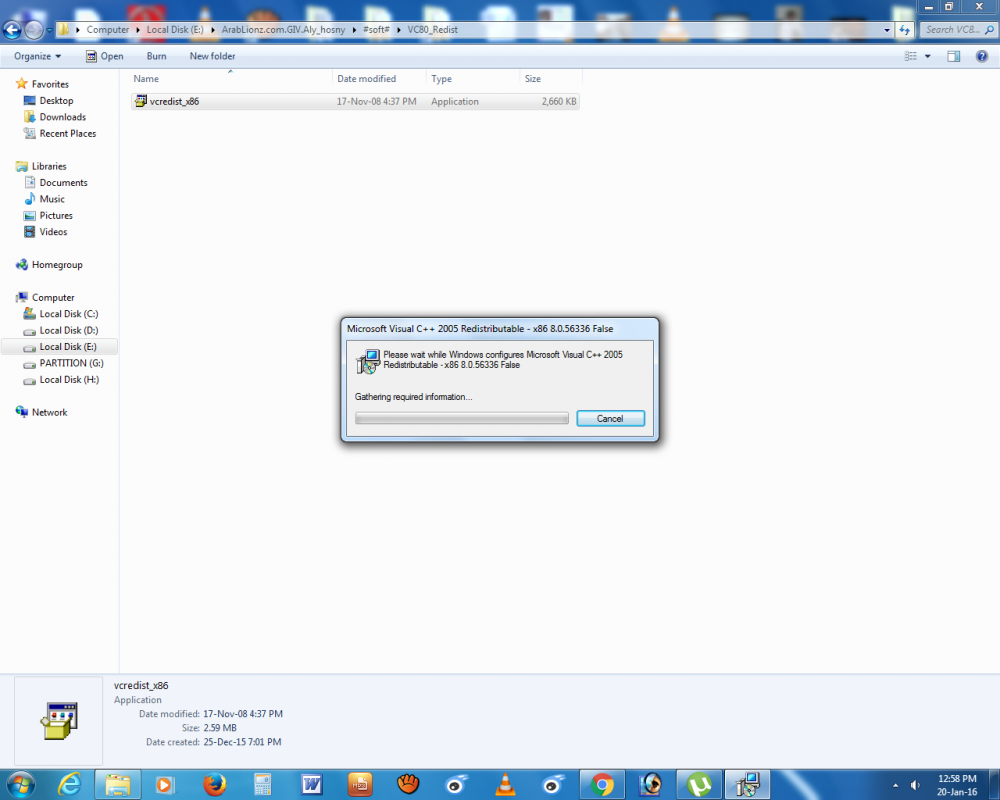
Legit copy.the game was runing good before 2 monthes then i patched it to 1. 0. 7. 0 to install green globin mod but after doing that i tried to run the game it get to the loading screen and after 5-6secs a window appears and says gtaiv has stopped working then i reinstalled the game but the same error was occuring so i uninstalled vcredist_86 nd tried to install it again just after that i couldn't install it I really wanna try out lcpdfr it looks so awesome pls help Whenver i try to start gta iv now razor 1911 appears and after that a window pops up sayin seculauncher application error 2000
-
this seculauncher ruined my life been looking for a fix for 5 days just cant find it everyone says install vcredist_x86 but whenever i try to install it,it gets to the required information and disappears it just wont install please i beg all of you to help me i really wanna try lcpdfr mode Please! here's the picture of vredist_x86 it says 86,9.0.0.6 false pls help me!