


hppolice
Members
-
Joined
-
Last visited
Everything posted by hppolice
-
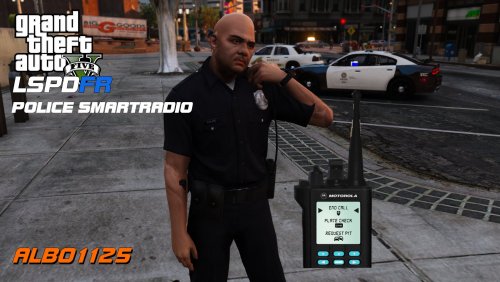 Hi everyone, I've installed plugins that add buttons to the Smart Radio but the game is not prompting me to add the buttons. It says in the log that Smart Radio is "not ready" and it adds the buttons needed to a queue, but never prompts me to put them in. Is there a way I can force the queue to occur, or force the radio to check for new buttons? Thanks
- 1,196 comments
- 127 reviews
-
Can you explain how you fixed it? I have the same problem
-
-
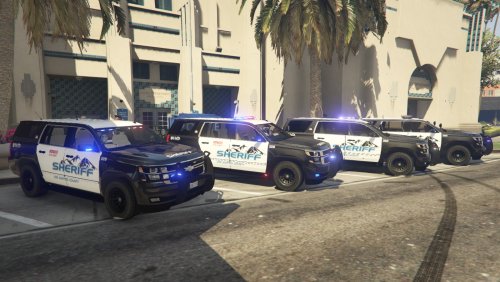 Hi, this may be a potential bug or it may be an issue that is common amongst other people. I have Radiance V installed, but the lights from decently far appear as all white, and I can't contrast them between red and blue until I get real close. I installed it a few times and this is a common issue between all the lightbars. Here's a screenshot of up close, and far away.
- 148 comments
- 34 reviews
-
@pimdslr Thank you for listening! you're literally a god Also, there's a model on gtavmods.com that you can take a look at, it's really polished and works really great! Be creative with the internal screen as well, and make it super high-tech! My dad owns one, and it's really his dream car. Just a note, the pickup (acceleration) responds quickly to his feet pressure, so incorporating that would make it ever so more realistic.
-
Hi there mynetdude and welcome to the community! Question 1: There is a useful mod that can help you determine what buttons you need to press for each action in LSPDFR Here's the link to that mod: Instructions are enclosed when you download it, in the README, on how to use it. Question 2: You have to press "Y" to accept a callout when it appears in the dispatch box, and that should give you a location. If you so choose, you can way point it by going into you menu, hitting enter inside the map (to bring it full screen), and using "WASD" to move the cursor around. Once you have found a location, hit enter to way point it. Question 3: To spawn cars from anywhere, I would suggest download a "Trainer". A trainer allows you to do different sorts of "administrative" actions, and is strictly forbided in multiplayer. Here is the link to it, and again, the method of installing it is in the README when you download this mod. Otherwise, you must go to a garage to get a car. Hope that helps, and happy policing!
-
It would be really cool to have that. LAPD has one, here's a picture if you're interested. There are some people who released Tesla Model S on Gta V mods.com

-
Hi. In my game, I load in and go to the police station only to notice that Sandy Shores is now packed with cars, and collisions happening right and left. Checked the settings, and the density is on the least amount along with the corresponding files. I don't know what's wrong, I can't figure out if it is due to the rpf's in x64e mods folder. If I could leave any logs, scripts, or screenshots, let me know. I have no clue what's going on. Any feedback is helpful, thanks
-
Hi. I had to redownload GTA V today because I messed up on some Open IV installations. I want to be able to backup to have a Multiplayer version, and be able to have an LSPDFR version. However, I don't have enough space to keep 120 gigs worth of games, as now I only have 20 gigs left on my system. I do though have a hard drive I can put the files on, which I connect to my computer via USB, but I was wondering if there are any complications of running LSPDFR off a hard drive Any feedback is helpful, thanks

