


RLXPrez
Members
-
Joined
-
Last visited
Everything posted by RLXPrez
-
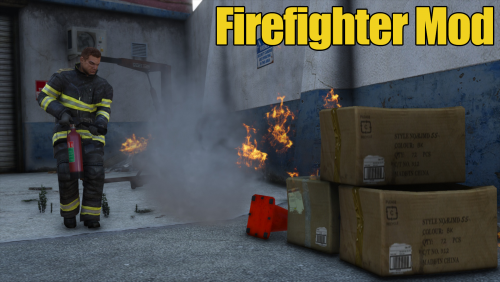 Bonjour MaN - I would like to install your mod, it looks great!! But I have the Retail Version of GTAV, installed from CD disks. I see from your installation posts, that you use the Steam version. It looks like there is a different file structure. Do you know if your mod works on the retail version of GTAV? I don't have a scripts folder under my GTAV main directory, so first I created one, then put your two files in my new Scripts folder (FireFighterModV1.8.dll and the Configuration.ini ) . That didn't work so, I put your two files directly into the GTAV main folder, That didn't work either. \ It makes me wonder if this game is supposed to work on the retail version. Any thoughts? RLXPrez
 -
beny485 - I'm still pretty new at this, but I've made some progress with the help of the experienced modders above. Can you describe what you've done so far? if your posting here i assume you have the retail disc version of GTAV. Did you get LSPDFR 0.3 installed and running ok? Have you located the main folder where GTAV is installed? Have you downloaded OpenIV? The first link that TheDude posted above gives a very detailed tutorial on using OpenIV to locate and replace original files with modded files. I learned a couple of things from the guys in the thread above, and working with the latest version of OpenIV. First, it will create the "mods" folder for you, but the first time, you will have to show it where your GTAV folder is. second, it will warn you if the folder you navigated into in order to install modded files, had not yet been copied into the mods folder, and offer to copy it for you. Lastly, this new OpenIV didn't seem to like the drag and drop or the copy and paste method. I had to use the insert or + tool to navigate to the downloaded mmodified files and insert them into the correct spot in the mods folder (in edit mode). Hope this helps.
-
No I didn't . The first time I used OpenIV resulted in me having to uninstall / reinstall the game. I'm gonna watch the videos TheDude recommended then try your suggestion. Thx!!
-
So as far as backing up my GTAV, after one attempted mod messed up the game resulting in a complete Uninstalling / reinstall. -- I just copied the entire GTAV folder into another folder in a different place on the hard drive and called it GTAVbackup. Or is there a different way that doesn't use up an extra 60 Gig?
-
Yes. . This is gonna be very helpful! ! Thanks to all should replied! !
-
Help! I recently purchased and installed the disc version of GTAV from Rockstar onto a fairly new, fairly high quality gaming PC. It runs great, but my grandson is into the latest mods. So we downloaded and installed LSPDFR 0.3 shortly after it was rolled out. It runs great too. The problem is now we are trying to install smaller mods like the Crown Vic, Chevy Suburban and NYS trooper for starters. The problem is when I watch the various you tube install tutorials, the directory structure shown all seem to be for the Steam version of the game, not for my version. it is making me wonder - Can these mods only be installed on the Steam version but not the disc version? I'd hate to have to shell out an extra $60 after having just bought Rockstar's disc version. If both versions can have vehicle mods installed, then what folders do the modded files go in? Or where is there a good step by step tutorial for modding the disc version? Thanks for any guidance you can offer.
