David1706
Members
-
Joined
-
Last visited
Everything posted by David1706
-
-
Do i have to put in the ini. and the dll. data in the plugins/LSPDFR folder OR in plugins
-
-
Hey i have open iv so i want to install some cars i did it like in the vids but its everytime just the same car what can i do?
-
Hey i have open iv so i want to install some cars i did it like in the vids but its everytime just the same car what can i do
-
No nothing happens can somemone do that with teamviewer PLs HELP me im so confused
-
thanks doesn´t work i put it in but nothing happens when i will select a car there is just the normal cars
-
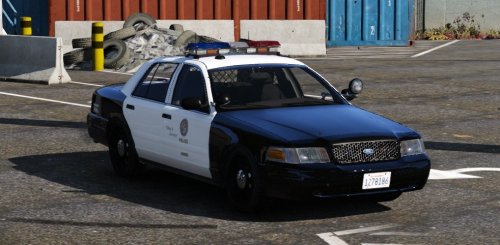
Help, i wanted to install cars with open IV and i cant put the datas from winrar to vehicle.rpf because in winrar data arent these blue paper planes and .. like in the open IV folder how can i put them in the folder to install this ford victoria and explorerYes Scott it works nowOK now i know what it was it was only 4.53hope it works now PLS.Ok thanks is it all for 64 bit ?so i updated it but nothing happen i started it as an administrator then only pops off an window if RAGE PLUGIN HOOK has to activate the exe and dll things i click yes and then NOTHING happensI updated the RPH then I wanted to start the RPH and nothing happens. pls Help :( and now it shows i didn´t started it as an administrator but I did