Skip to content
View in the app

A better way to browse. Learn more.

LCPDFR.com

A full-screen app on your home screen with push notifications, badges and more.

To install this app on iOS and iPadOS
  1. Tap the Share icon in Safari
  2. Scroll the menu and tap Add to Home Screen.
  3. Tap Add in the top-right corner.
To install this app on Android
  1. Tap the 3-dot menu (⋮) in the top-right corner of the browser.
  2. Tap Add to Home screen or Install app.
  3. Confirm by tapping Install.

USRanger213

Members
  • Joined

  • Last visited

  1. FDIC1999 started following USRanger213
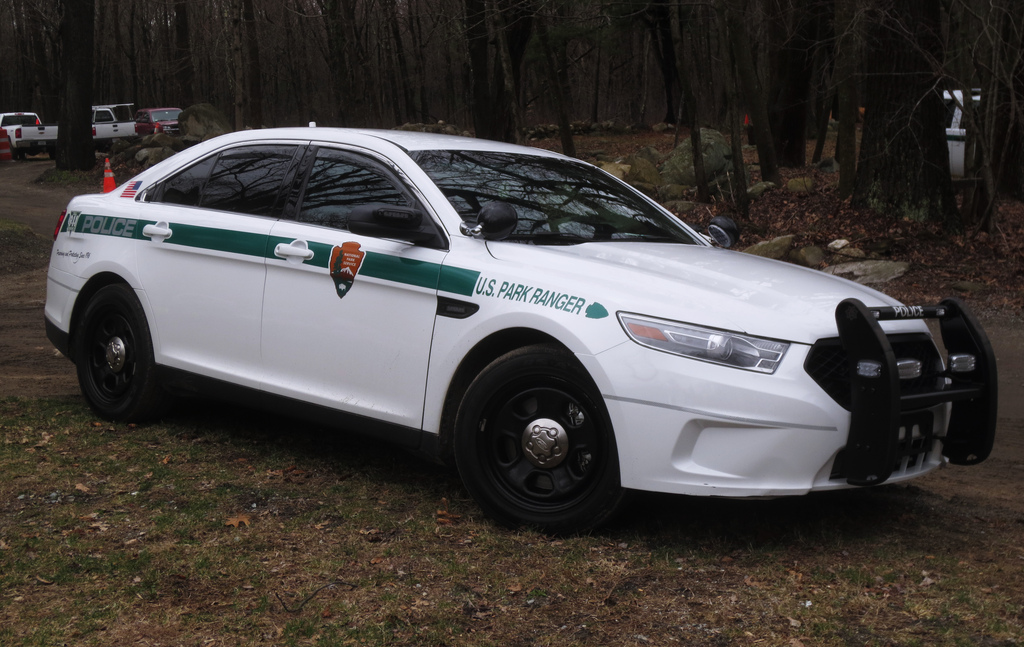
    Well done, but technically the graphics here aren't NPS policy. It shouldn't say "PARK RANGER" people will get that confused with city or county rangers. The U.S. National Park Service (NPS) says "U.S. PARK RANGER" on the front fenders and rear tailgates. Also, the words LAW ENFORCEMENT stretched across the rear side fender. ^2007-2014 Chevrolet Tahoe U.S. National Park Service Law Enforcement [Federal]
  2. USRanger213 changed their profile photo
    PNWParksFan, First I want to say WELL DONE on the USFS and NPS law enforcement vehicles. I was waiting for someone to create accurate skins for these agency vehicles. However, attached is the new 2016+ graphics for all NPS law enforcement vehicles. It was signed into the NPS Law Enforcement Manual (RM-9) over the summer. The back of the vehicle simply says U.S. PARK RANGER (with no green stripe) and the agency arrowhead lower left side of tailgate (similar to what you already have). We (many NPS LEOs) were working to change out the words LAW ENFORCEMENT with POLICE (because of the universal understanding) but high command at WASO (Washington DC Supervisors Office) stuck with the politically correct "LAW ENFORCEMENT" terminology. I've worked three years as a NPS law enforcement officer so i figured I'd let you know about our agency change in vehicle graphics! You'll start seeing them at U.S. National Parks near you!

Account

Navigation

Search

Search

Configure browser push notifications

Chrome (Android)
  1. Tap the lock icon next to the address bar.
  2. Tap Permissions → Notifications.
  3. Adjust your preference.
Chrome (Desktop)
  1. Click the padlock icon in the address bar.
  2. Select Site settings.
  3. Find Notifications and adjust your preference.