


ItsMarcheh
Members
-
Joined
-
Last visited
Everything posted by ItsMarcheh
-
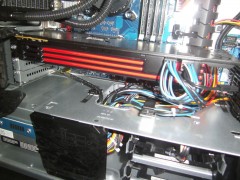 You got the exact same Graphics card as mine :D #AlienwareFTW
 -
-
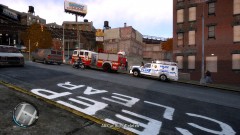 1.0.4.0
 -
Haha thanks
-
From the album: Scene Setups
Weasel News report Today at 11:43am, Drivers were shocked to see a vehicle drive into a fence and the driver take off. Mr W. Foster contacted LCPD reporting that a car just drove into a fence and the driver got out, shot a gun round into the air then took off losing balance and failing to stay at the scene. Officer A. West, the first officer to get on scene told us this today. "The LCPD have found no evidence of a gunshot round being fired into the air and due to that Mr Foster has been taking into custody to be questioned." The LCPD Forensic unit will arrive shortly to search for clues to find out who this "Drunk" driver is. We'll have more on the story tonight at 10. -
-
With who?
-
Thanks for the advice I use IcEnhancer 2.0N and that's all :)
-
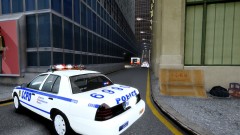 Thank you.
 -
From the album: Scene Setups
Weasel News report Murder in the streets! Today at 4:34pm, J. Harrison, a foot patrol officer heard gunshots from this alleyway and ran towards the scene to investigate. He saw a lady lying on the floor knowing to be Miss A. Harrison, His wife. Officer Harrison called in a "Female GSW" Unknowing it was his wife at the time then was shot twice in the head. By the time LCPD and FDLC were on scene, there was no whereabouts of a shooter in the area. FDLC Told us that Officer Harrison was shot by a 45. Cal weapon. LCPD Forensics are now on scene investigating the area for any shell casings. We'll stay on the scene and report when the situation is cleared. -
Hey guys, So some of you might know I upload videos to YouTube for people on this site and others can enjoy and be entertained. Now I need your help. I want your guys opinions on what you like to see in GTA Videos. LCPD:FR or just standard responding to setup scene. Let me know in the comments and I'll do my very best to continue to give entertainment :) My YouTube: http://www.youtube.com/ItsMarchy
-
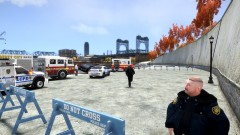 Thank you so much :) 5-10 Minutes :)
 -
I did mention this on a Battlefield 3 Live Commentary a did a few weeks ago.. I might re-raise the topic.
-
From the album: Scene Setups
Weasel News Report Today at 5:26am, Morning joggers were shocked to see a vehicle hanging over the side of the edge of the water side. Miss J. Williams Called the LCPD reporting that there was a 4 door car hanging over the side. The LCPD Dispatcher dispatched ESU Officers and 1 LCPD Unit to the scene following was the FDLC Ambulance and Fire truck. FDLC were unable to move the car due to the risk of the car going over. LCPD searched the car and found a body in the trunk. Mr F. Fitch was found. A well known criminal on the LCPD Wanted list. FDLC Managed to remove the body from the car and rested the victim on the floor for Paramedics to attend to. by 6am Mr Fitch was dead. The cause was overdose which led the LCPD to believe it was a case of Reckless Driving.. It's 12:35pm and Emergency Services are still on the scene investigating why a Wanted Criminal who had no history of drug related activity's was overdosed. We'll have more on the story tonight at 6 on Weasel News! -
-
-
-
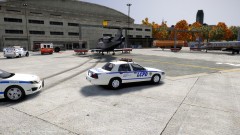
From the album: Scene Setups
Today at 5:33pm the LCPD recived a call from the FIA to report that a plane had just touched down carrying someone who had a heart attack mid flight. When LCPD arrived on scene along with FDLC paramedics, They discovered that the injured person was on a FIA Terrorist watch list. LCPD Called for ESU in case of an up rise on the scene. The Pilot and passengers were taken to Broker PD for questioning while the injured person was transported to Schottler Medical Center for treatment. -
