


FitPro18
Members
-
Joined
-
Last visited
Everything posted by FitPro18
-
 What do you use, may I ask? Yes I am aware, I just thought it would be more realistic...and yes I see in the text file you can disable random generated citations.
- 72 comments
- 12 reviews
-
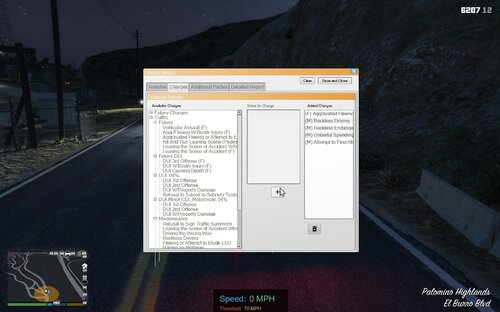
Do you know how to add warnings to the citations page? As in a ticket that costs $0? I am able to create a new offense list, but if I make the fine $0 and try to save it, it says "citation missing required information". I tried playing around with the .xml file by removing the "fine="x"/>", but I cannot get it to work. The reason I want to make this work is so that it acts as a written warning and saves to the lspdfr computer, verses issuing a warning at the driver's car (which does nothing). Thanks!
- 72 comments
- 12 reviews
-
but when i watched tutorials on it, other people's files replaced in the directory. but when i copy them over it doesnt do the same. i think this is why LSPDFR isn't working when i load through rage hook
-
After watching several different video tutorials on youtube installing LSPDFR, Ragehook ScripthookV, and simple trainer, when copying the files into the main directory it would replace existing files in the GTA 5 directory. When I try and copying over LSPDFR after 7-zipping it, the files wouldn't replace any of them in the directory. But when I try and copying over ScripthookV, Ragehook, and the simple trainer, it would replace files, but not for LSPDFR files. Any one know why this is happening?
