hummer3524
Members
-
Joined
-
Last visited
Everything posted by hummer3524
-
-
-
 just disregard i thought traffic policer was having an issue but it was one of my plugins went bad after the update
- 3,646 comments
- 306 reviews
-
Well I can confirm that one of my plug-ins went bad after the update and traffic police is fine thanks for the help I don't know why I couldn't have done this yesterday it actually was the new police radio plugin that was just released
- 3,646 comments
- 306 reviews
-
Yeah I am testing my plug-ins by putting them in in at a time in believe one of them is not supported by this version of gta because arrest manager and traffic police have no problems by themselves in the plug-ins folder if this makes any sense
- 3,646 comments
- 306 reviews
-
Nope Still not working here is a link to the error log http://pastebin.com/Tv01Qud1
- 3,646 comments
- 306 reviews
-
Ok i deleted dsound.dll and moved those audio files, i will see if it works later today
- 3,646 comments
- 306 reviews
-
-
The problem is the RageHook is not logging the issue what happens is it loads then initializes a callout and then i hear 2 beeps and the game closes and dosent bring up the ragehook crash log generator
- 3,646 comments
- 306 reviews
-
After it loads in LCPDFR the whole game crashes but if i take it out of the folder and run it without it the game works fine
- 3,646 comments
- 306 reviews
-
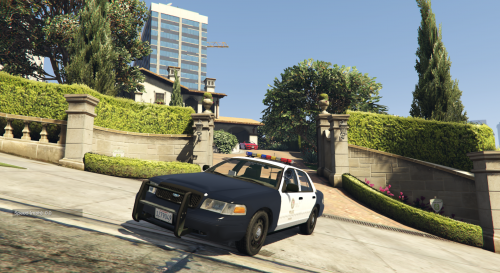 Great Mod the only problem is the light bar dosent spawn on the cars until they are really close other than that great mod
- 29 comments
- 7 reviews