


gask77
Members
-
Joined
-
Last visited
Everything posted by gask77
-
-
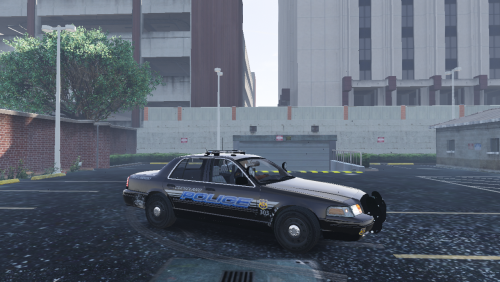 AWESOME! Rep cleveland dude!
 -
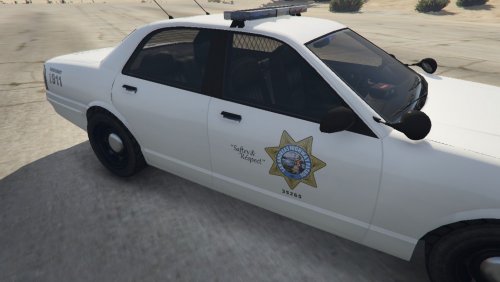 San Andreas Highway Patrol Cruiser skin created by gask77 Just a simple texture for the SAHP. I was annoyed that they use just a white unmarked car in vanilla LSPDFR, so this will give them an official unit there are multiple liveries, one is unmarked but they all have the lightbar This car will replace police4 located in x64e, backups provided in download Installation: Use OpenIV to navigate to GTA V/x64e/levels/gta5/vehicles.rpf Click "import" (green plus icon) and add all 4 SAHP files Done Uninstall: Use OpenIV to navigate to GTA V/x64e/levels/gta5/vehicles.rpf Import all 4 police4 backup files provided Please inform me of any issues!
 -
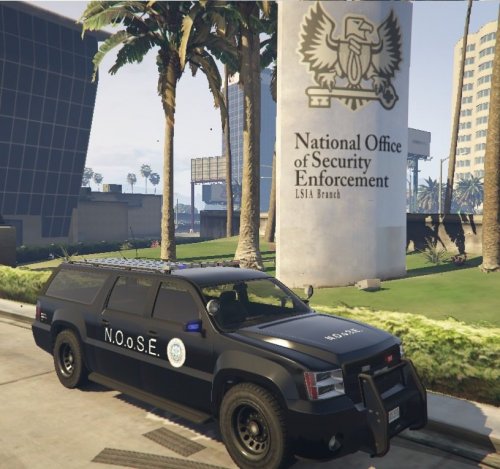 In gta IV it was lower case. National Office of Security Enforcement.. I hope I didnt get it wrong lol
 -
N.O.o.S.E Granger (Lightbar) Created by Gask77 12/14/16 A more official looking, marked version of the original unmarked granger used by swat teams, now has a lightbar I'd love feedback! Installation: -In OpenIV, go to GTA V/update/x64/dlcpacks/patchday2ng/dlc.rpf/x64/levels/gta5/vehicles/rpf -Import the 4 files -Run GTA V and enjoy Uninstall: -Import fbi2 original files into previous location -Delete fbi2+hi.ytd

.thumb.jpg.4066677156985e22489bfecddc2f6c45.jpg)

