
RadeonQC
Members
-
Joined
-
Last visited
Everything posted by RadeonQC
-
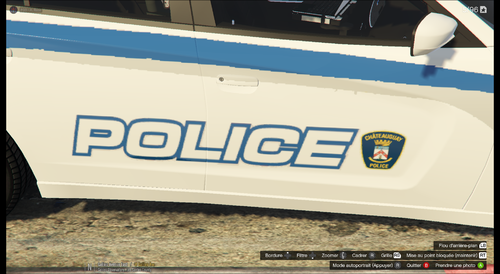 L'idée est très bonne, mais les couleurs et certaines lignes ne sont pas ressemblant au vrai corps de police. Une bonne idée pour comparer, va sur policecanada.ca et tu les auras tous! Une V2 serait apprécié!
 -
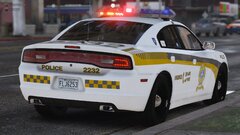 LOOOOOL
 -
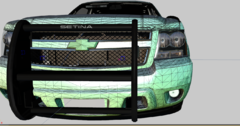
From the album: Radeon's WIP
That face tho... -
-
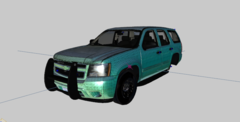
From the album: Radeon's WIP
2013 Unmarked Tahoe New WIP. Will update pictures! -
-
HI, when i press express mode the light don't work, they are not lighting up even with G, the siren dosen't work either. in solo its fine... only in multiplayer The express mode dosen't work, anyone can help me? Still no answers? i really need it to work for my clan.
-
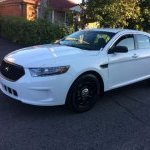
Its the BxBugs Taurus, i added it using this video: and this is the taurus i used: http://gtapolicemods.com/downloads.php?do=file&id=516
-
It's on GTA IV not GTA Online. I added 2 more cars and they work, only on that car is not working
-
Hi i added a new police car to the Added Cars Menu, in solo the lights and siren works but in multiplayer only the lights works, when i press G it blows the horn and i hear the little sound.
-
I wanna play lcpdfr with you guys! but im on eflc... my gfwl is aG Radeon
-
Hey add me! im french too! my gfwl: aG Radeon