


FishtheDestroyer
Members
-
Joined
-
Last visited
Everything posted by FishtheDestroyer
-
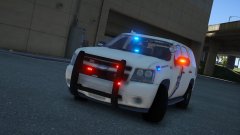 sexy
sexy -
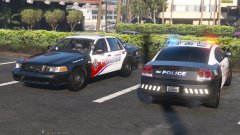 np take your time
 -
Any Updates?
-
-
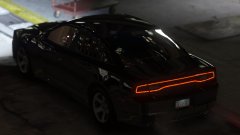 Thank you
 -
-
Dope screenshot, what graphic u use?
-
-
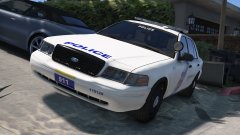 Thank you for you for your hard work on this project. I'll be looking and can't wait for its release, coming from a fellow Philadelphian
 -
Any updates?
-
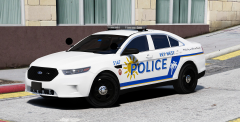 Or livery pack , ehh just let him do what he wants
 -
He's making a skin
-
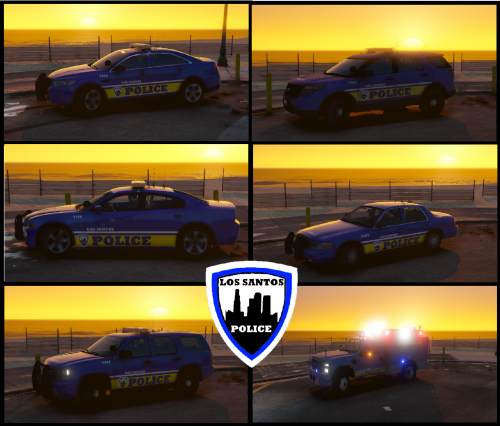 Ok ty One last thing is the Esu truck is just to bland here's just some examples of what u can add
- 9 comments
- 1 review
-
-
One recommendation u could add is adding call 9-1-1 to the backs left and right sides of the car and put the unit number on the top of the car and also add police to back of the car but all in all good work
- 9 comments
- 1 review
-
-

- 1
-
-
-
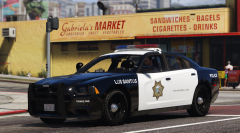 Yea lol sorry about typed it on my phone auto correct ya know
 -
Hey looking good, would u make a k-9 Vic for this pack just curious but can't wait
-
Hey will I do a k-9?
-
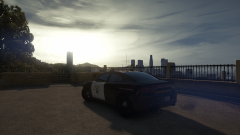 I will admit one beautiful screenshot nice work, mind telling me what graphics stuff u use?
 -
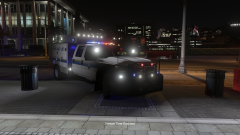 Cool, thank you for your work on this pack
 -
I'm glad u went with the mta thx for using one of my suggestions
-
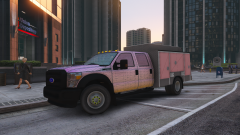 Yea it's fucking sexy
 -
Just some ideas
-
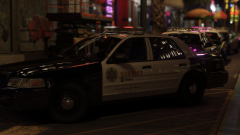 What graphics mods do u use?

(1).thumb.png.88768999418102328d5e8e4607b92fd4.png)
