
PoliceWomen
Members
-
Joined
-
Last visited
Everything posted by PoliceWomen
-
From the album: Policewomen
-
From the album: Policewomen
-
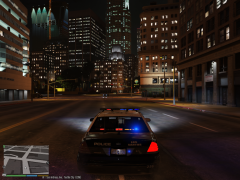
From the album: Policewomen
-
From the album: Policewomen
-
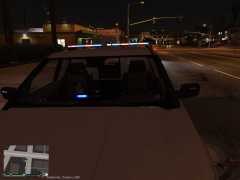
From the album: Policewomen
-
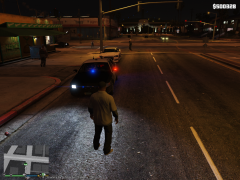
From the album: Policewomen
-
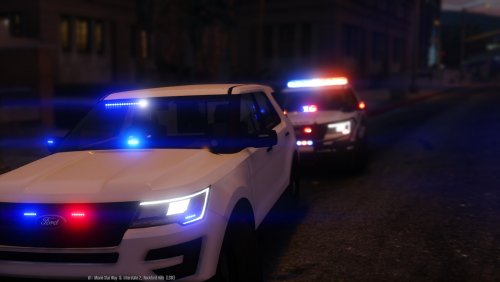 use radiance mod installed Visual V 2.10 and your visual file hm .. the lights are not as bright as in the movie from 2016 LSPD FPIU
- 269 comments
- 67 reviews
-
-
-
-
should I put on high and have only radiance of mod bxbux car mod inside set high white lights and red and blue low lights give carivations meta ...to download not dont copy all other car lights cvpi sheriff and any more its blue and red full color
- 269 comments
- 67 reviews
-
joa
-
scripthook ist falsch bitte die neue installieren http://www.dev-c.com/gtav/scripthookv/ 16 Mar 2016 Version v1.0.678.1 Supported patches 1.0.335.2-1.0.678.1 Download Download
-
help my lights its white installed the car into patchday9 carivations meta sheriff 2 drop into mpvalentines2 common data ... would anyone give his carvarations meta where are lights in blue red I despair just ... do not know where the next fault could be thanks so all again but now is something wrong with the colors -.-
- 269 comments
- 67 reviews
-
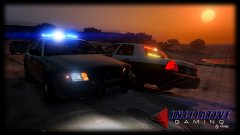 gump there already as a download are top to be allowed would be happy to play so soon
 -
LSPDFR 0.4 ????
-
wooohooo gump its nice hope you give free for download :)
-
the files its sheriff2 not policeold cari and handling not works lights its white
- 269 comments
- 67 reviews
-
.thumb.jpg.0292e3fd6badde65db17dc81e85765b9.jpg) jo du musst die in patchday 9 auch ein fügen weil gtav seit dem patch immer die neussten patches nimmt bei mir klappt es so
jo du musst die in patchday 9 auch ein fügen weil gtav seit dem patch immer die neussten patches nimmt bei mir klappt es so- 7 comments
- 4 reviews
-
-
-
-
-
-
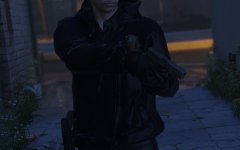 ok this its a nice work can wait for this
.thumb.jpg.0292e3fd6badde65db17dc81e85765b9.jpg)