


Alexander195
Members
-
Joined
-
Last visited
Everything posted by Alexander195
-
 damn I miss that show
 -
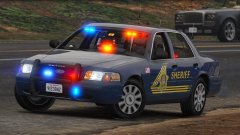
![[GIF]Blaine County Sheriff's CVPI.](//s3-gallery.int-cdn.lcpdfrusercontent.com/monthly_2016_02/small.GIF-CVPI.gif.eabec2e45138f287bb79232f78ee5e88.gif) That skin is based off my local sheriff's department, isn't it?
That skin is based off my local sheriff's department, isn't it? -
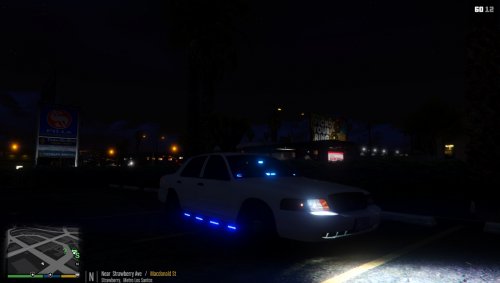 Good job on the siderunners, I know from personal experience how much of a pain they can be.
- 40 comments
- 14 reviews
-
-

- 1
-
-
-
 Teach me your ways.
 -
 Oh my god
 -
.thumb.jpg.4066677156985e22489bfecddc2f6c45.jpg) Do people realize that you can double click the .OIV file and it shows the files the automatic installer uses? That's how you manually install the cars. You'd think since you play a game where you role play a cop, that you might be able to do some detective work and figure out how to properly install mods.
Do people realize that you can double click the .OIV file and it shows the files the automatic installer uses? That's how you manually install the cars. You'd think since you play a game where you role play a cop, that you might be able to do some detective work and figure out how to properly install mods.- 376 comments
- 81 reviews
-
-
- 6
-
-
-
 3 monitors tho
 -
 That moment when you spell your name wrong in the credit..
 -
-
 Not sure why someone would be upset about such a small detail. But to each their own I guess.
 -
https://www.gta5-mods.com/vehicles/ford-logo-for-cvpi-bxbugs123-sergiusz005
-
-
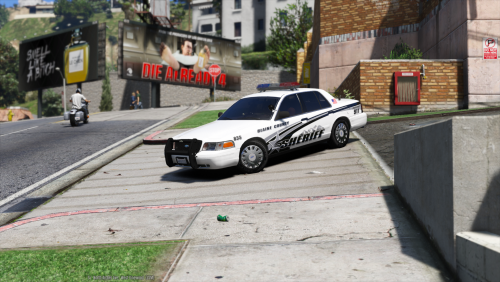 10/10 My favorite skins you've made. It's crazy to see these skins you sent me so long ago being released finally!
- 21 comments
- 10 reviews
-
-
- 1
-
-
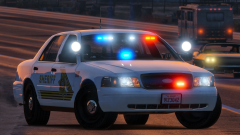 y du u h9 me
 -
Nice explorer!
-
-
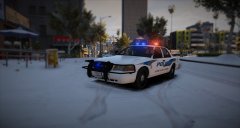 No problem at all, just curious.
 -
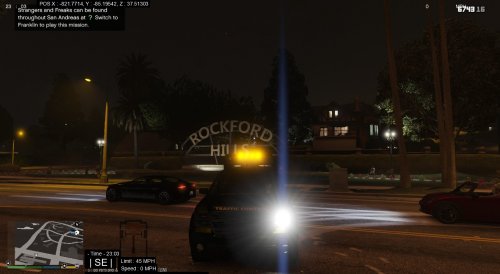 Since when do "traffic control" carry surfboards?
 -
-
Who recreated Carpers skin?
-
 Indeed Carperino
 -
I'm surprised mine works lol
-
???

![[GIF]Blaine County Sheriff's CVPI.](http://s3-gallery.int-cdn.lcpdfrusercontent.com/monthly_2016_02/small.GIF-CVPI.gif.eabec2e45138f287bb79232f78ee5e88.gif)
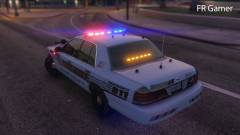
.thumb.jpg.4066677156985e22489bfecddc2f6c45.jpg)
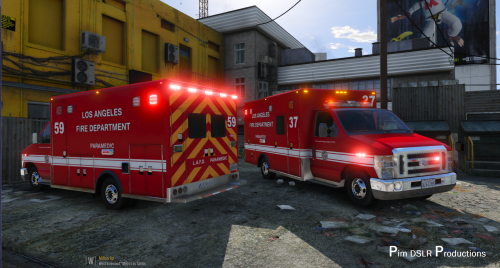
.thumb.jpg.54f04afcd6ae69e17f1388b62a696d8b.jpg)
