


Officer19
-
Joined
Everything posted by Officer19
-

From the album: Officer19 WIP
-
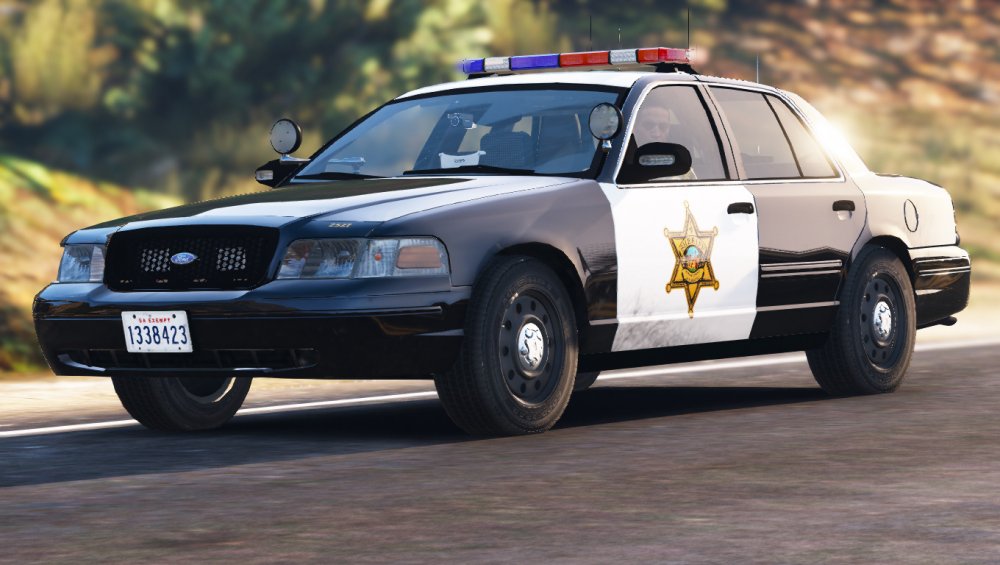
its too realistic ..! Who knows!
-
You also can use Patrinus mod he is going to update his work again as he said in his last post :D
-
No way to do that just you have to respect the stock one :D
-
The truth my friend no need to tell you that just take a look on how many likes you got from this awesome plugin :D Thanks!
-
-
-
-
 Its really appreciated work! Awesome pack :D
 -
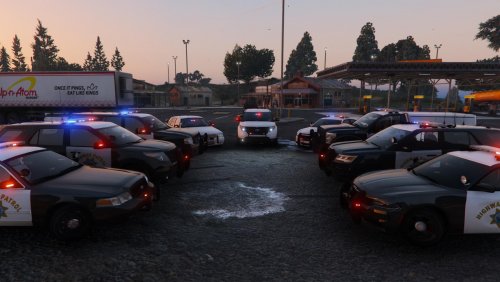 Its really a work that deserve to be one of the best Car Packs right here. Like button,5 stars its not sufficient but okay :D Great work!
- 501 comments
- 104 reviews
-
-
-
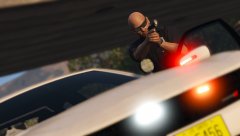
From the album: Officer19 WIP
Get out of the vehicle and put your hands up! -
 WoW "Father with his son" "Modern motorcycle with his old friend" Like BUTTON :D
 -
-

From the album: Officer19 WIP
-
 I guess so xD Hahah But i opened to check this cap in EUP and i found nothing Why?
 -
From the album: Officer19 WIP
Hey @Lundy I think this must be more acceptable :D Thanks for notify me , the another photo has been removed :D -

-
I agree too with you but the most interested car in my opinion is the Expedition (Second one).
-
-
-
Euh?
-
I love this skin so much!
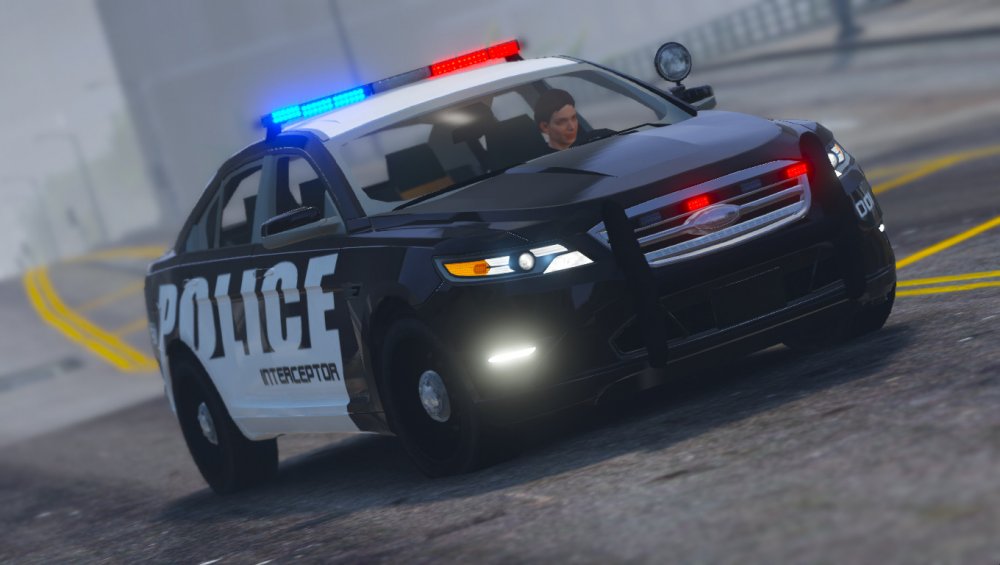
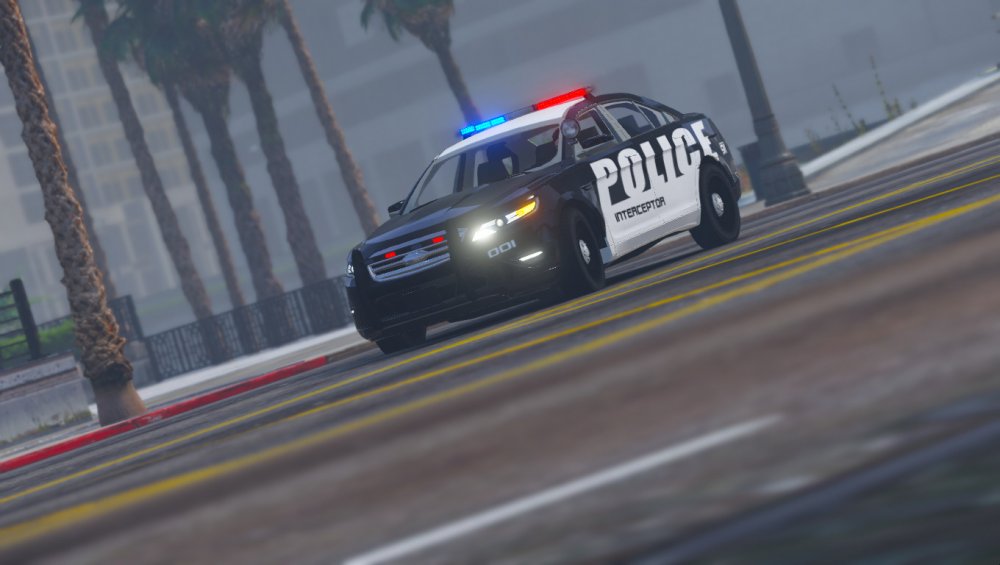
-
Agree with it. But i think if a member wants to give his own opinion he must be polite and he must use kindly words and if you don't like a created work and especially from beginners, so you can give him few points or few tips to follow it and you can encourage him. Briefly, if you don't have good words to say, or you want to frustrate a work you will be able to don't write anything in the comment BOX . Just respect the other's work and let him work without your negative words.(my own opinion to @Khanage.) I think it's related too much to your BEHAVIOR or ETHICS. Liked @Lundy's comment cause he realized the different between polite comments and silly and bad comments:



