


Officer19
-
Joined
Everything posted by Officer19
-
Don't thank us that's us who must thank you Your awesome screenshots NOT by the comments or by the amount of photos it's by your awesome making your camera in the right place @Carrythxd @Lundy And i really don't know if my pics are awful or what.... Thank you Lundy and Carrythxd
-
 Not Lund . But it's a real and complete name
 -
So I think he is going to use Zmodeler3 for this type of modifications for cars
-
Sorry about this question WHAT DO YOU MEAN BY CAR MOD... IT' S A Car (Zmodeler3) or it's a mod (you have to learn C# Lang..
-
You're welcome enjoying to help you
-
As usually it's awesome work and usually when it's done
-
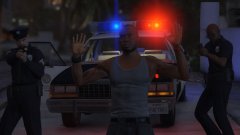 awesome comments .. i thank you all
 -
i suggest to use all previous mods but for my opinion you can use latest version of RPH
-
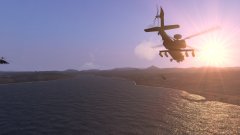 Military base's vehicle is working It seems like ArmA III
 -
Two AH-64D's escort a UH-60 with a HVT onboard
-
mmm
-
Yeah.. i think
-
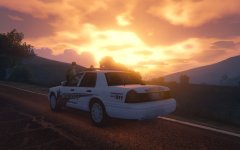 I really love this Title "Never forget your purpose in life" this title makes a sense with this photo
 -
Then.....
-
I know, it's generally whatever it's LSPD but still the honor
-
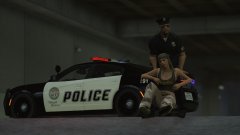
From the album: LSPDFR [WIP]
What can you do in an action like this -
From the album: LSPDFR [WIP]
Give this photo a name -
You have two choices to learn how to add cars Firstly You can setup your own OpenIV then go to your GTA V directory and create a folder called "mods" then copy into this folder "Update folder and x64e.rpf" Secondly you can use FinKone's tutorials to learn how to install cars, you can find it here and for full tutorials you can open his own channel on the youtube you can find it here
-
It's a real purpose sir do you know what's the meaning of LCPD, it's honor i think
-
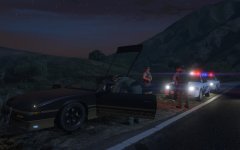 Request an additional backup in a traffic stop, It's too interesting and looks beauty and too arranger Good shot, buddy
 -
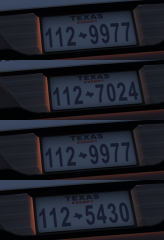 I think this photo may called "Texas" Looks Nice,Buddy
 -
Sorry to don't understand you carefully .... I think you can use xbox controllers (xbox pad) like ineseri said I think it might work
-
Simply to answer your question, LSPDFR a modification for PC and won't be available for the other consoles
-
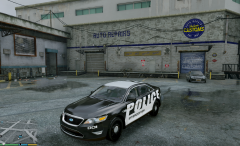 I got texture files from GTA5-Mods and to get the vehicle you can download it from Vehicle section for GTA V from the site Or i think in the readme file which is coming with the texture give you a link for the interceptor UNMARKED or something like that and you will replace your own textures that's all
 -
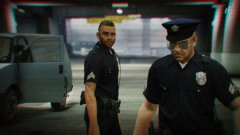
From the album: LSPDFR [WIP]

