

Kal74
Members
-
Joined
-
Last visited
Everything posted by Kal74
-
 [16/05/2016 10:04:03.573] Error while loading plugin D:\Games\Steam Games\steamapps\common\Grand Theft Auto V\Plugins\RAGENativeUI.dll. Plugin is skipped during reload. Exception: System.ArgumentException: Assembly RAGENativeUI.dll (RAGENativeUI, Version=1.1.0.0, Culture=neutral, PublicKeyToken=null) does not have the required Plugin attribute. Why would RAGENativeUI.dll be in your Plugins Folder? It only belongs in the Main GTAV Directory Folder
- 102 comments
- 35 reviews
-
 Please post your R a g e P l u g i n H o o k log file into a spoiler or copy the entire log to http://pastebin.com/ copy/paste the link to it here.
- 1,915 comments
- 242 reviews
-
-

- 1
-
-
-
Maybe some people think were magicians. Watch me pull a rabbit from my hat <------ would you settle for a ninja instead?
- 1,915 comments
- 242 reviews
-
Kind of hard to give you an accurate answer without seeing the RagePluginHook log file..
- 1,915 comments
- 242 reviews
-
 I can only speak for myself here, I'm not having any issues with this Plugin.
- 182 comments
- 25 reviews
-
 Because you have huge muscles, lay off the steroids kidding, no clue, I've not experienced this.
- 342 comments
- 49 reviews
-
 Albo1125 had to deal with a few people complaining of performance issues, but not everyone was having performance issues. So yeah I can imagine it's difficult to pinpoint an issue that everyone isn't experiencing..
- 329 comments
- 53 reviews
-
-
oh no, you know how a lot of people get crashes on the very last thing they do so they assume its because of that callout.. I felt like maybe that is what caused his crash and not your callout.
- 329 comments
- 53 reviews
-
lol I was pointing them out of his log he posted.. I know this is Code Red Callouts. My apologies.
- 329 comments
- 53 reviews
-
-
You have these issues below. Not sure if these are contributing to your crashes, but you should update the RAGENativeUI.dll to version 1.3.1.0 ... Arrest Manager 6.0.1.0 has the RAGENativeUI.dll version 1.3.1.0 and Traffic Policer 6.8.0.0 has that version as well. You have both of those installed, maybe you forgot to replace it. If you already fixed this, disregard.
- 329 comments
- 53 reviews
-
 Send me a private message with screenshots of your entire GTAV Folder, the Plugins Folder and the LSPDFR Folder inside of the Plugins Folder, Also a screenshot of your Police Scanner Folder .. You can use http://imgur.com/ to upload the images and copy/paste the link here or use whatever you prefer..
- 204 comments
- 22 reviews
-
Okay lets back up because I just checked, don't kill me, I'm human.. You were correct to just drop the Federal Audio Folder into that Folder Here is what my police scanner folder looks like So my apologies. I've got about a dozen things going on around me. Again I am sorry I messed you up, but I'm glad when I focused I corrected myself.. Hope you still have the folder called Federal Audio.. If you don't just create one and name it that and drop those files back in it. So these Files https://gyazo.com/7c822168f6343f31c8ed44dbb2dabd9e go back into the Federal Audio Folder and the whole Folder does just get dropped into the Police Scanner Folder.. You can see it in my screenshot above.
- 204 comments
- 22 reviews
-
-
-
-
All of those Audio Files belong in the lspdfr > police scanner folder .. So go into your Main GTAV Folder and open up the lspdfr folder, then inside of that is a folder called Police Scanner.. Put those files in the above screenshot into that Police Scanner folder. So to recap were removing that Federal Audio Folder from the current location... Were taking the files out of that folder and putting them into the Police Scanner Folder, don't just drop that folder in there. You want the files inside of that Folder.
- 204 comments
- 22 reviews
-
-
Can you post your RagePluginHook log file into a spoiler or screenshot your Plugins/LSPDFR Folder
- 204 comments
- 22 reviews
-
 You must of downloaded it and forgot about it, but it's from If you intend on using it, then yes activate it, or leave it deactivated in case you want to use later on, but having it activated won't hurt anything even if you don't plan to use it. Look in your Plugins Folder to see if you have some files in there called Law Enforcement Jurisdiction Script. If you don't want to use it, just delete those files with that name in it.
- 338 comments
- 46 reviews
-
No problem at all. Yeah the RPH Config Console is where you go to check which plugins you want loaded at startup. Some you may want to load manually if you choose to.. Only the Plugins in the Plugins Folder will show up, nothing in the LSPDFR Folder in that Plugins will show up because those are loaded automatically when you go on duty. EDIT: Just wanted to clear it up that the RPH Config Console has many different uses. I was just focusing on the Plugins Tab itself..
- 338 comments
- 46 reviews
-
Is it set in your RagePluginHook config console to auto-load on startup? Under the Plugins Tab
- 338 comments
- 46 reviews
-
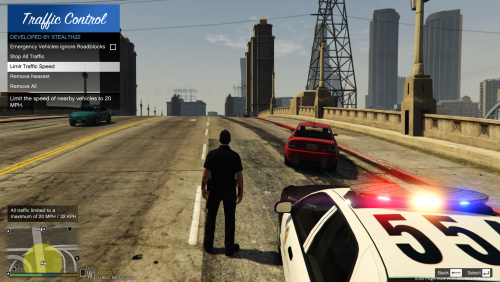
Now I'm not sure if you will have better luck than me, but what I've had an issue with is it wouldn't remove all roadblocks when I tried. I ended up going into my RagePluginHook Config Console and went to the Plugins Tab and unchecked the box next to Traffic Control to not allow it to load automatically.. Then after I go on duty I load the Plugin manually Via the F4 Console..Then remove all roadblocks seemed to work. You might have better luck than me just letting it automatically load.. So let the Plugin auto-load for now.. If you have issues removing all of the roadblocks then try the method I use...
- 338 comments
- 46 reviews