


jcthiel13
Members
-
Joined
-
Last visited
Everything posted by jcthiel13
-
I'm looking for some modders who are somewhat good at making scripts and models. I want to make "callouts" or more mission based systems and make a mod that can be used both for LSPDFR and/or Live server RP.
-
I just started the mods folder yesterday, however my models aren't showing up. only the vanilla default packs are. At this point I think I might need hands on help
-
I'm trying to import a new police vehicle but it seems like I cant find the newest dlcpacks folder to put it in. Can someone tell me what the newest pack is as of today?
-
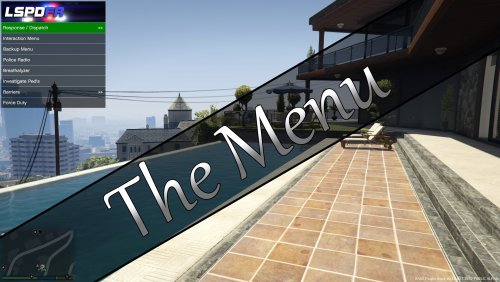 It seems that you have set the file when it forces duty to automatically click F4, However I have my Simple Trainer set as F4 and my Console as F5. Is there any way you could make that customizable in the XML file? Also if anyone wants help on making menus or editing their XML files, PM me and I will do what I can to help!!!
 -
LOVE IT!! I've been spending yesterday and today coding this game to work for my mods and I'm loving every second of gameplay. Had a couple issues in the beginning with keybinding overlapping on controller as well on PC but after changing some on both sides, especially setting keys on my keyboard to things I don't use then coding them with those keys into the xml. I'm not going to lie, if coding frustrates you then this might not be the right mod for you, however once you get used to the setup its very simplistic. LSPDFR MENU Traffic Policer Sub-Menu Passive Radar Sub-Menu

