


.jpg.03cb52daeca81ee279b5ec50b14ffd67.jpg)
bardo2014
Members
-
Joined
-
Last visited
Everything posted by bardo2014
-
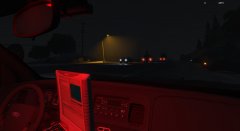 Is this a WIP? With the red light?
 -
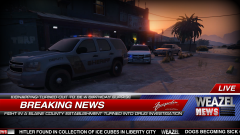 @LawfulTeen Will the tahoe be coming out soon?
 -
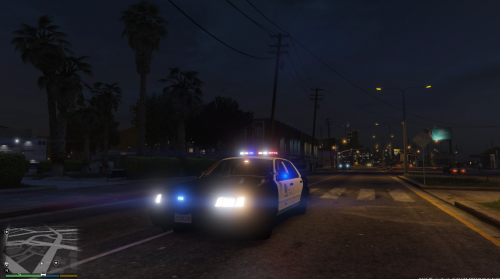 Thanks. Haha I think your's is equally as badass. Watching the big bang rn!
- 99 comments
- 13 reviews
-
-

- 1
-
-
https://www.gta5-mods.com/scripts/enhanced-native-trainer This is the best one I have found. follow: vehicles>modifications>might have to switch a few pages, and extras should be on the last page.
- 99 comments
- 13 reviews
-
-
- 1
-
-
-
Yes, You need a native trainer that has the capability of allowing radio on foot, which you can also use on in your emergency vehicle. Here's a link to the trainer that I use: https://www.gta5-mods.com/scripts/enhanced-native-trainer Without a trainer it is not possible. Hope this helped!
-
Where did you find this, and who is working on ELS for V?
-
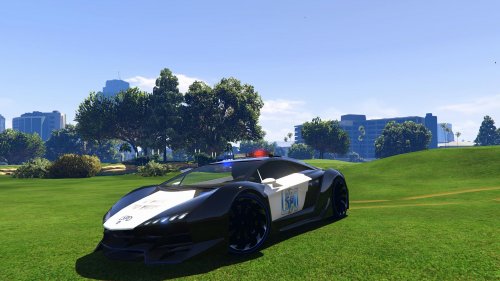 I think that this car is awesome and has potential. Its a nice car to use for highway patrol and pursuits. However, I did notice some issues. First, the car has no mirror texture or material. Second, the inside of the car doesn't look complete. Third, is there any way to change the sound from the buffalo to the lambo? And those may be bugs that you are working on. But I figured I'd mention them! Thanks for the great model!
- 18 comments
- 5 reviews
-
Yes! That makes the roleplaying experience so much better! I've been wanting to do this, but haven't had the time! It already looks great!
-
 That would be awesome! Would really enjoy it!
 -
Did you use some sort of tool or mod to set this up? This looks awesome! Great job!
.jpg.03cb52daeca81ee279b5ec50b14ffd67.thumb.jpg.e05e41fc70c1973f34af620673076e6c.jpg)
