
Officer27
Members
-
Joined
Everything posted by Officer27
-
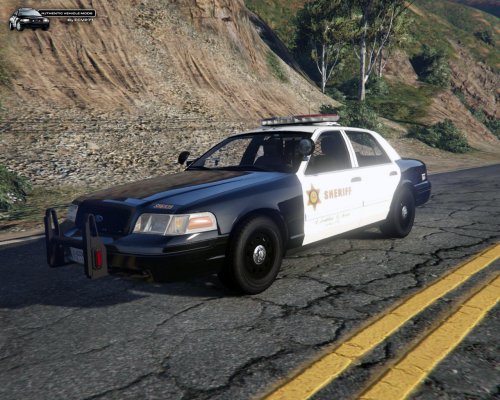 @FCVP71 Love the new update! there is one thing, I don't really mind it, all LASD cvpi's that have ALPR also have an ASAP logo on them, I know its not possible for an extra to spawn with a certain livery :(, just a heads up. It stands for: Advanced Surveillance and Protection plan (ASAP)
- 75 comments
- 13 reviews
-
-

- 2
-
-
-
From the album: Album 2.0
-
From the album: Album 2.0
-
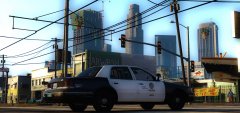 @Jakub Watkins Dvorak Whose CVPI is that and what graphic/visual mod/s are you using?
 -
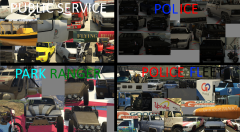 I really cannot see any difference between these and the vanilla vehicles.
 -
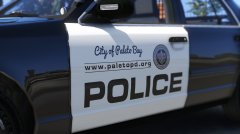 The design looks good, there is one suggestion I have, try making the 2 black stripes go through the whole white part of the door, going behind the logo.
 -
Looking great! However you NEED to listen to @Lundy's advice in order to get it perfect, please.
-
@Desmond98 Hey, found something irrelevant for now but I found that the LAPD K-9 Explorer has 2 grill lights :)
-
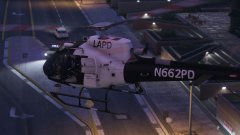
From the album: Album 2.0
https://www.gta5-mods.com/vehicles/as-350-ecureuil -
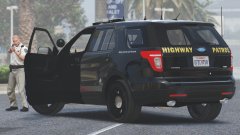
From the album: Album 2.0
-
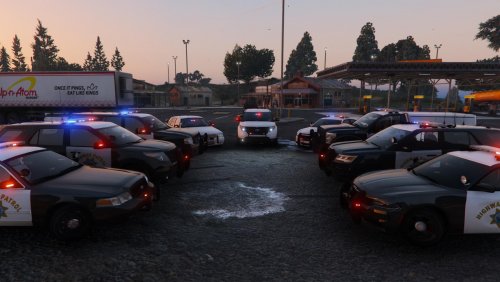 @Thehurk If you ever decide updating this or creating a new version then please tell me to do the liveries, the roof numbers aren't accurate (Sorry to hear about your hard drive , hope everythings okay)
- 501 comments
- 104 reviews
-
What you don't take into mind is that these testers have no control of the mod being uploaded that is all up to Caine as some of the testers have stated many times.
-
#TaylorSwiftExposed
-
Crazy.
-
-
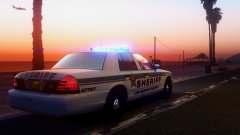 Graphics mod? nice pic BTW :)
 -
Ignore this.
-
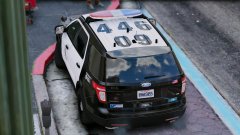 Yes I tagged you so I could annoy you with these pics :)
 -
From the album: Album 2.0
@Lundy LundyLundyLundyLundyLundyLundyLundyLundyLundyLundyLundyLundyLundyLundyLundyLundyLundyLundyLundyLundyLundyLundyLundyLundyLundy -
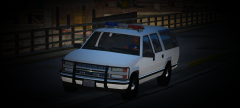 When you've templated it could you send me the template so I can make some LAPD/LASD liveries :)?
 -
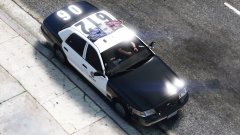
From the album: Album 2.0
@Lundy Feel free to judge -
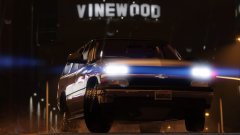
From the album: Album 2.0
@Bxbugs123 https://www.gta5-mods.com/vehicles/2006-chevy-silverado-suburban -
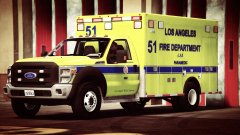
From the album: Album 2.0
-
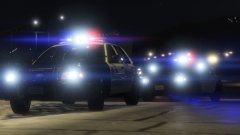
From the album: Album 2.0
I'm sorry for all these pics but now im addicted to Rockstar Editor.