




sergeantFrank
Members
-
Joined
Everything posted by sergeantFrank
-
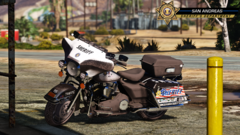
From the album: While On-Patrol
-
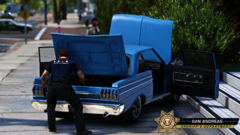
From the album: While On-Patrol
-
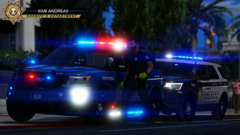
From the album: While On-Patrol
-
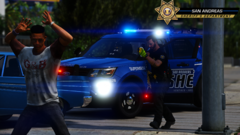
From the album: While On-Patrol
-
From the album: While On-Patrol
-

From the album: While On-Patrol
-
From the album: While On-Patrol
-
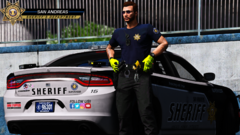 Hey, thanks!:) Sadly i do not believe you can get this car anymore. It's one of J.J Dawkins model.
 -

From the album: While On-Patrol
Migrated all my cars and clothes to SASD! Love it! -
From the album: While On-Patrol
Migrated all my cars and clothes to SASD! Love it! -
From the album: While On-Patrol
Migrated all my cars and clothes to SASD! Love it! -
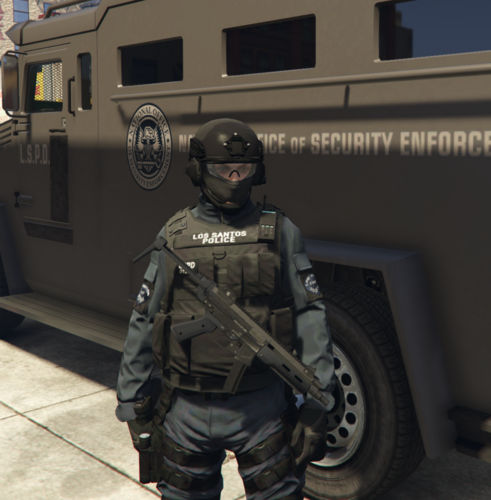 Yeah, i mean mine's are optimized for custom vest's so i doubt they would work for you guys, but i'm glad you figured it out
- 264 comments
- 21 reviews
-
From the album: While On-Patrol
-
From the album: While On-Patrol
-
use the Hold My Gun Plugin, and just store your weapon in your car when you don't need it.
- 264 comments
- 21 reviews
-
-

- 1
-
-
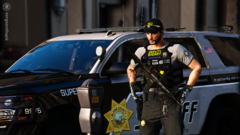
From the album: While On-Patrol
-
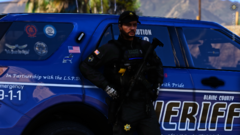
From the album: While On-Patrol
-
Nice, love the customization. One suggestion, if possible, you could add multiple profiles, so we can decide ingame where we want to put the AR. At the moment i have it on my vest, but i obviously don't have a vest on 24/7.
- 264 comments
- 21 reviews
-
-
- 2
-
-
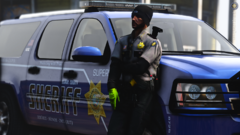 Feels good to be back:)
 -
From the album: While On-Patrol
-
Just an idea, but you could make an optional front holstering option. Like this. I don't know how it would look, and i don't really want to mess around with the ini since it would take ages to figure out, so i just leave this here lol. NVM. I did it in under 5 minutes lmao
- 264 comments
- 21 reviews
-
-
- 2
-
-
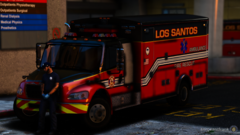 Hey fellow officers! I'm sorry, but i'm gonna be hospitalized for atleast a week, so there won't be any new pictures or possible releases. Stay tuned, and Safe Patrols!
 -
From the album: While On-Patrol
-
From the album: While On-Patrol
-
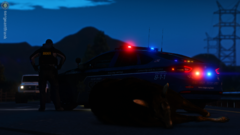
From the album: While On-Patrol

