


gp
Members
-
Joined
-
Last visited
Everything posted by gp
-
Waiting months and months to release the perfect product leads to nothing being released at all... I hope those were some strong words you were using and that iterative development is still a strategy being considered once LMS figures the technological breakthroughs required to release something ;)
-
I am curious about the same thing. I am glad for the unlocked CVPI because it allows me to practice building up a car and would like to do the same with its lightbars.
-
A well modeled, well lit, well skinned FPI makes for great cruises!
-
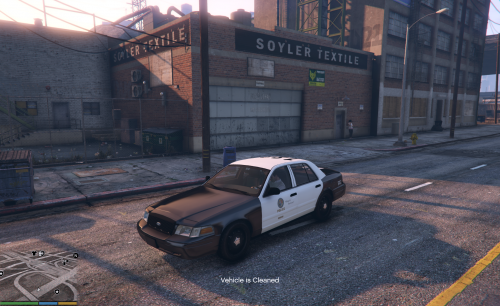 Apologies for perhaps a newbie question, but when importing this model it seems I'm missing the wheel textures because they are named .dds. Can I simply use "Replace.." in Zmodeler3 to use the pngs provided? Is there something I might be doing wrong?
- 17 comments
- 10 reviews
-
Looks great!
-
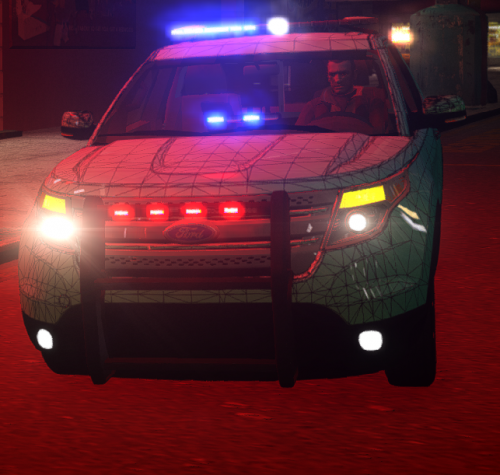 Sorry, is there something I don't understand because I don't get a texture when I replace this model, I basically see a wireframe similar to explorer_sign_1.png. I did not attempt to edit the model in any way.
 -
 This would be perfect, the only nitpick I have is that LSTG 2 back lights look a bit odd since there are only lights on the right side flashing.
- 16 comments
- 4 reviews
-
You can hear someone playing a video game in the background noise of the WAIL.wav sample it seems like. Sounds like Pacman. I doubt this is noticeable in-game though.
- 14 comments
- 12 reviews
-
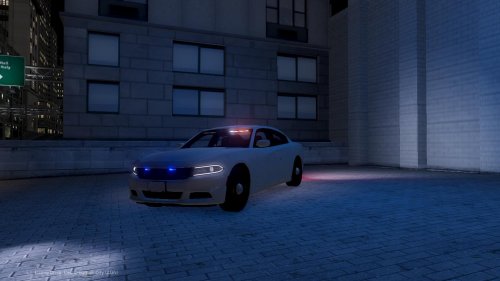 Hey there, this car looks amazing and works very well with ELS 8.5, good job!
- 3 comments
- 3 reviews
-
-

- 1
-
