


rukrim
Members
-
Joined
-
Last visited
Everything posted by rukrim
-
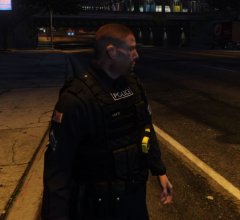
From the album: LSPD New Uniforms and Gear
new uniform patches and faces -
-
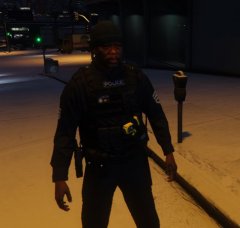 yes...as soon as i get a stable version....there are some models that have difficulties with the cop hat for example...
 -
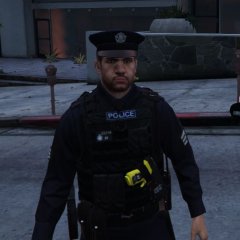 YEAH....i know that the skin of the vest is yours....i planned on changing it...it was just a simple texture to replace the stock one and show in the pictures. All will be different when i upload the model (textures changed). Thanks for understanding :D
 -
From the album: LSPD New Uniforms and Gear
SNOW uniform also needs to be done lol :D need to add gloves :P -
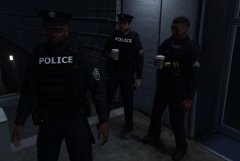
From the album: LSPD New Uniforms and Gear
-
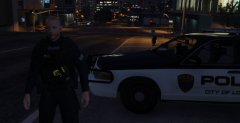 Currently iam not using autodesk 3ds max because i dont have it. all what iam making is merging and making combinations of certain objects that are available at gtav. after i get the autodesk i will edit positions and add more things.....until now i think that autodesk 3ds max is th eonly one that lets you edit ODR. files.....we will need to wait for zmodeler3 to integrate this file extension with a new update :D.
 -
i will add some more things and varietys and i will upload. this is the cop male version....wait for the female one lol
-
From the album: LSPD New Uniforms and Gear
-
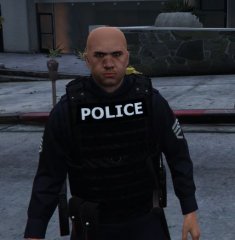
From the album: LSPD New Uniforms and Gear
-
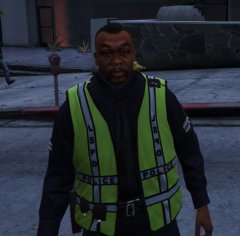
From the album: LSPD New Uniforms and Gear
-
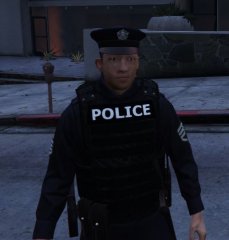
From the album: LSPD New Uniforms and Gear
-
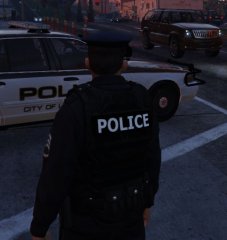
From the album: LSPD New Uniforms and Gear
-
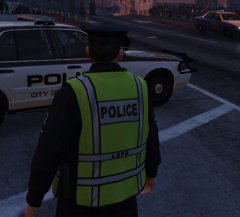
From the album: LSPD New Uniforms and Gear
-
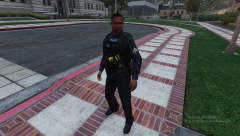 yup, that needs to be fixed by changing the location of that part of the model. I dont have the appropiate programm for that yet....but after i get it i will fix many things :D
 -
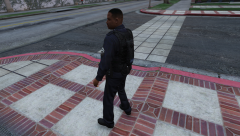
From the album: LSPD New Uniforms and Gear
-
From the album: LSPD New Uniforms and Gear
-
From the album: LSPD New Uniforms and Gear
-
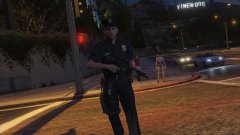 haha Lundy will blame himself during all her life because he said what the new update of openiv has lol
 -
me too :D
-
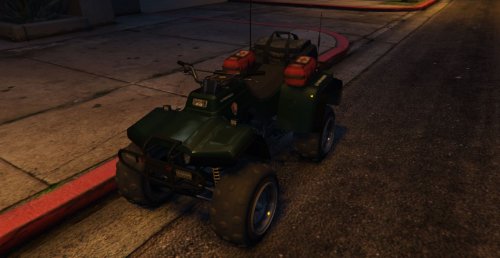 will be hopefully soon...i've been busy with studies and i have little time to work on this model and my other models iam working on.....but i will update , dunno when but i willl
- 58 comments
- 5 reviews
-
-

- 1
-
-
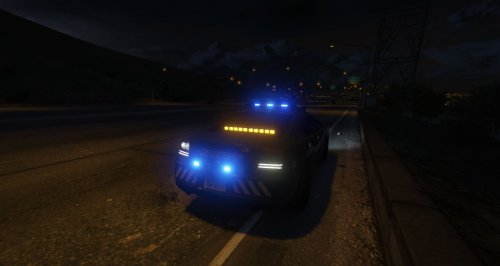 the traffic advisor works with the blinkers signal function...you will need a script that let you use the right, left and hazard signs to make it work :D
- 31 comments
- 4 reviews
-
ah yeah now i get you..lol...yeah an ini file should be uploaded to configure the keys at our own preference :D
-
I think that this script is a lua. Not a ragehook :P
-
the position of the textures blue and red you need to change.......that happens when the textures are inverted...or you can invert the siren_xx(number) of one light to the other.....check this:

