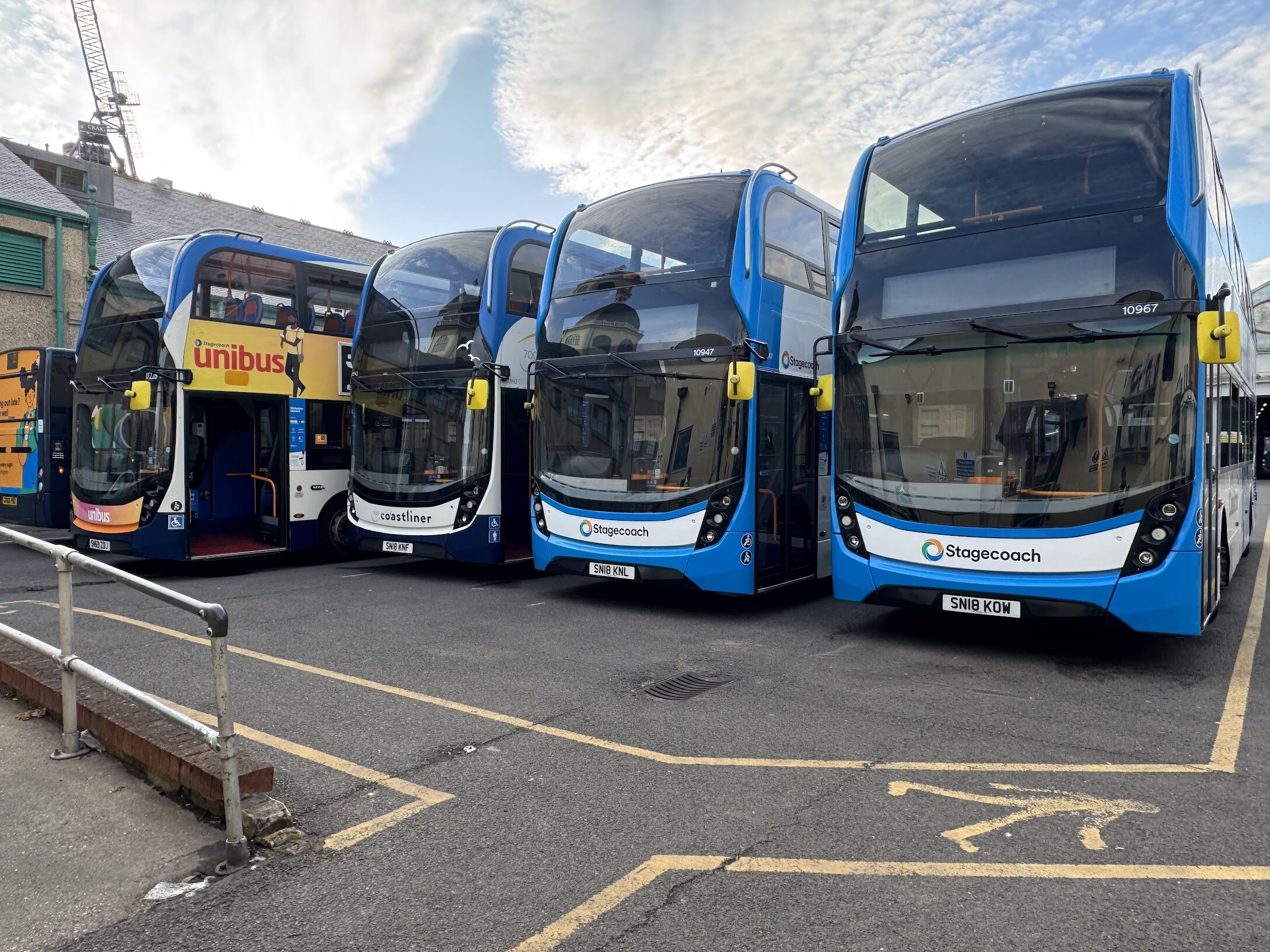
I’m Kae, UK-based, and I work as a bus driver IRL.
Outside of work, I spend time on LSPDFR as a technical hobby rather than a content-creation focus.
I work intermittently on scripts, configuration systems, and supporting tools, often experimenting with mechanics, workflows, and integrations rather than producing finished public releases. As a result, a significant portion of my work remains internal, unfinished, or shelved.
I tend to focus on:
Script logic and system behaviour
Performance, stability, and edge-case handling
Configuration flexibility and maintainability
Realism-oriented workflows rather than gameplay balance
My free time is limited and irregular, so development is done in short bursts rather than on fixed schedules. I’m not release-driven, but I’m open to collaboration, testing, and contributing where it makes sense and time allows.
LSPDFR remains a long-term hobby rather than a primary project, but I aim to keep improving my technical understanding and contribute meaningfully when possible.