



OfficerMajinDE
Members
-
Joined
-
Last visited
Everything posted by OfficerMajinDE
-
 nice to hear.. Keep up the good work
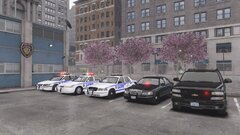
awsome where can i find the unmarked cvpi and tahoe ?
nice to hear.. Keep up the good work
awsome where can i find the unmarked cvpi and tahoe ?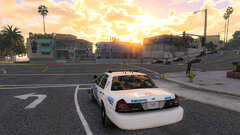
From the album: LOVE GTA V
Car by @B613WAIT FOR NEW MODS-
On Patrol in NO
-
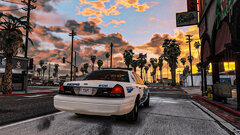 Sunset via NOPD
-
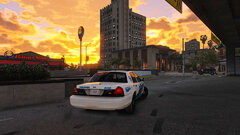 mood
mood
-
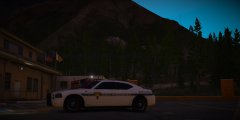 State Police
-
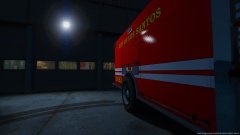 ready for calls !
-
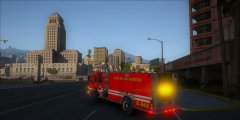 -_-
-_-
-
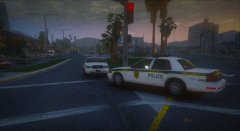 On Scene Code 4
-
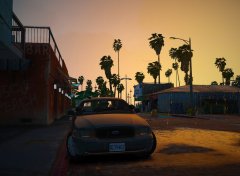 LSPD SWAT is Ready to go
-
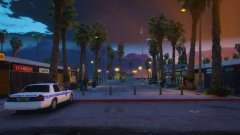 little break ok ?
-
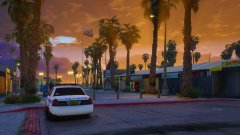 enjoy the sunshine officer
-
 Busted ^^
-
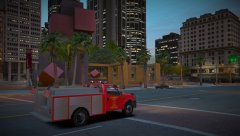 Squad 51 Responding (Retro)
-
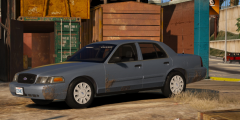 In Love with this nice CVPI
-
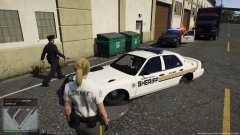 Is this normal??? yes in GTA it is normal xD
-
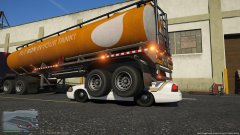 mhhhmm what is this ???
-
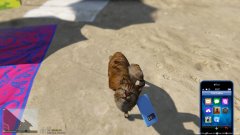 HAX
HAX
-
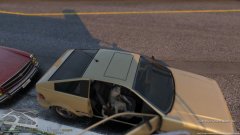 WTF HAX
-
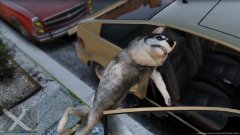 WTF
WTF
-
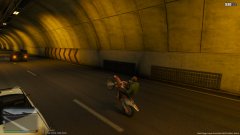 Wheely time after long word day :D <3
-
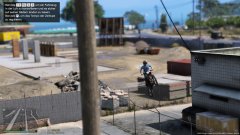 Cool Detective in HIGH SPEED CHASE
From the album: LOVE GTA V
Car by @B613
From the album: LOVE GTA V
Car by @B613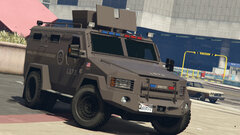 looks good man.. but dont forget to make a only blue lights version xD ❤️
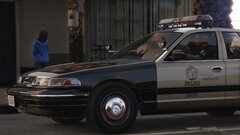 uthaotuhw auoht sexyyyyy but weeee neeeeeddd hubcaps xDDD and slicktop/unmarked bro 😛❤️ great work so far
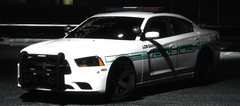 oben inner süd haha geil xD sieht gut aus kommt da noch mehr ? ❤️
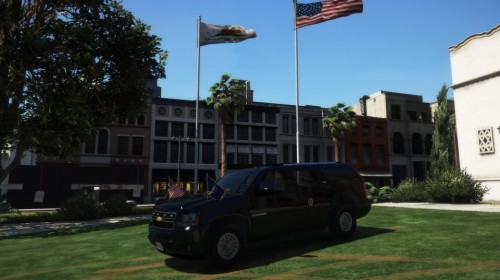 mhhhh ?? looks like SkylineGTRs Suburban ???!!!!!!
 Hell yes man but you really need to make the US MARSHAL SERVICE ❤️
.png.5bcc35487761ce6e6f4fe895ab046ab3.png) oh man i love it and i want it you really need to release it ❤️
oh man i love it and i want it you really need to release it ❤️ ❤️ oh nice man hope its els... BTW 2006 Marked and Unmarked Tahoe with els soon????? maybe pls 😛
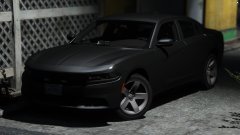 oh man i love it and i need it 😉❤️ nice work
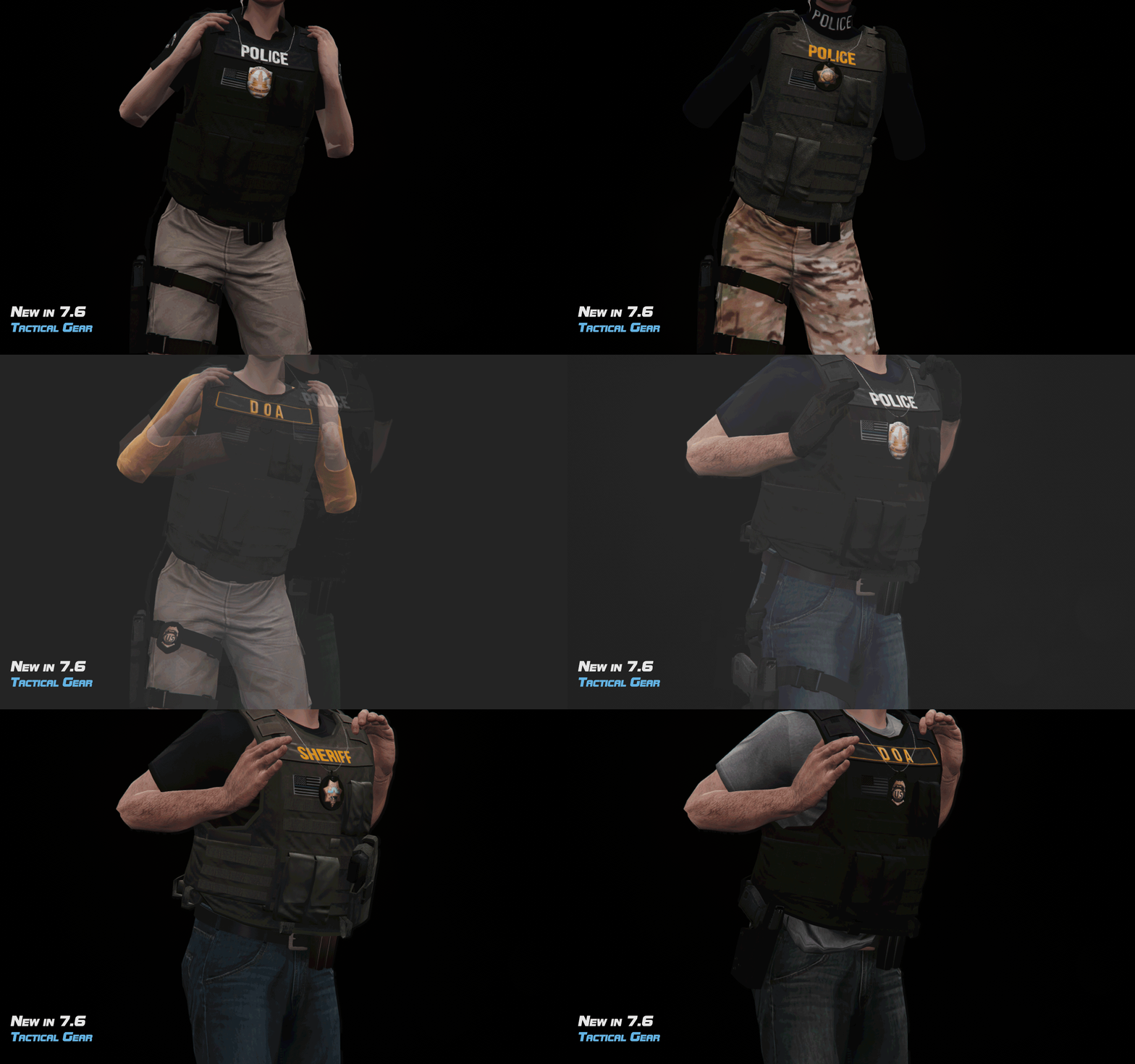
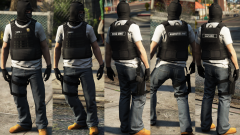 Nice one ❤️ love it i think we need a NCIS Federal Agent and US Marshal Vest too.... 😄😛
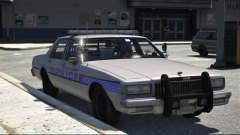 hahaha 😄 i love it ❤️ and i need it... 😄 😄
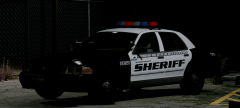 Same setup on a 2009/10 Charger ❤️
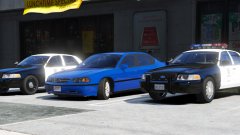 oh my god..... :O i want them alllllll
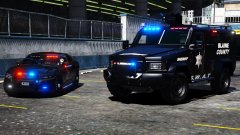 S E X love this man i cant wait.. Good to see you back
 <3
<3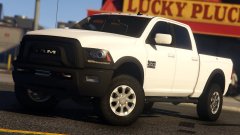 your cars are amazing :D <3 you need to make a 2017 Toyota Tacoma TRD PRO ^^
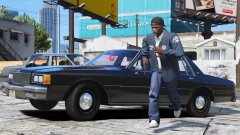 uhhh thats nice man :D <3 but please one version with the fb11



.png.5bcc35487761ce6e6f4fe895ab046ab3.png)


