


Getinmybelly
-
Joined
-
Last visited
Everything posted by Getinmybelly
-
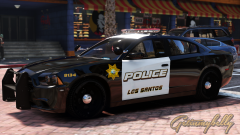 It is using three different shades, which are you referring to
 -
From the album: Getinmybelly's GTA V Screenshots
-
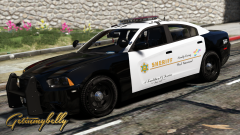
From the album: Getinmybelly's GTA V Screenshots
-
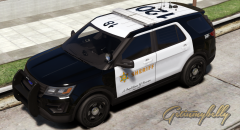 Not quite, I originally planned that but now intend to do each individually.
 -
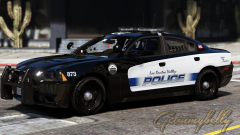
From the album: Getinmybelly's GTA V Screenshots
-
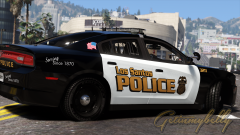
From the album: Getinmybelly's GTA V Screenshots
-
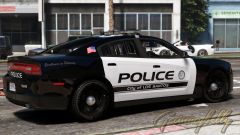
From the album: Getinmybelly's GTA V Screenshots
-
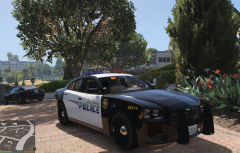 Don't be, I literally made the same edits myself
 -
From the album: Getinmybelly's GTA V Screenshots
San Andreas Departments Overhaul WIP -
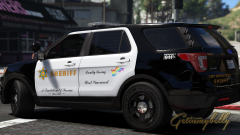
From the album: Getinmybelly's GTA V Screenshots
San Andreas Departments Overhaul WIP -
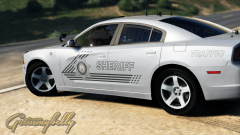
From the album: Getinmybelly's GTA V Screenshots
San Andreas Departments Overhaul WIP -
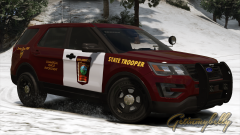
From the album: Getinmybelly's GTA V Screenshots
San Andreas Departments Overhaul WIP -
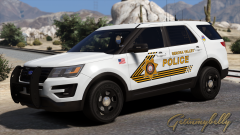
From the album: Getinmybelly's GTA V Screenshots
San Andreas Departments Overhaul WIP -
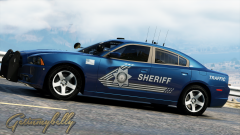
From the album: Getinmybelly's GTA V Screenshots
San Andreas Departments Overhaul WIP -
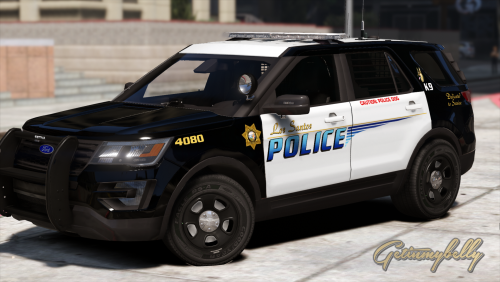 Sorry but it is likely not, I'm working on other additions so that whole pack won't probably be in this round
- 11 comments
- 6 reviews
-
-
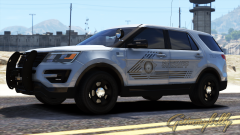
From the album: Getinmybelly's GTA V Screenshots
San Andreas Departments Overhaul WIP -
I do, I was taking a brief break from these to work on others but I did have intentions of doing it and others within the next week.
- 11 comments
- 6 reviews
-
-

- 2
-
-
-
.png.8965e0ebe1de8bdcd78e232032907ccd.png) I do, i set aside time to release some other skins
I do, i set aside time to release some other skins -
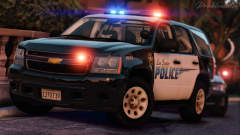
LOS SANTOS POLICE DEPARTMENT PACK Part of a many part San Andreas overhaul I've been working on. These graphics are likely to be the main police replacement, with the other agencies coming later. DO NOT REDISTRIBUTE OR MODIFY Currently supported vehicles (screenshots do not reflect all supported vehicles included):
- 11 comments
- 6 reviews
-
-
- 13
-
-
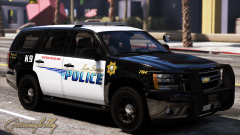
From the album: Getinmybelly's GTA V Screenshots
San Andreas Departments Overhaul WIP -
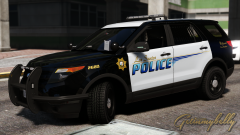 Yeah, I can likely add that one too no problem
 -
I could add that one to my list, thus far I have -2014 Charger -2011 cvpi -2008 style tahoe -2013 Fpiu I wasn't planning on any 2016 fpiu bases but because I like his cars I can add that one in
-
From the album: Getinmybelly's GTA V Screenshots
San Andreas Departments Overhaul WIP

.png.8965e0ebe1de8bdcd78e232032907ccd.png)
