


Junijii
Members
-
Joined
-
Last visited
Everything posted by Junijii
-
 Hopefully you installed the OIV to your mods folder because then you can just copy over the files from your game folder into your mods folder. update -> update.rpf -> x64 -> data -> cdimages -> scaleform_generic.rpf If you installed into your game folder then you're gonna either have to verify your game files to get those files back (bad because it'll overwrite changes made to other files) or maybe the mod author could help you get those files back via his Discord.
- 84 comments
- 6 reviews
-
- rph
- lspdfr callout
- legacy
- rph
-
Tagged with:
-
No problem, man. Glad I could help. This callout pack is one of the most ambitious ones I've seen and I'm excited to see where it goes. Thanks for making it!
- 84 comments
- 6 reviews
-
- rph
- lspdfr callout
- legacy
- rph
-
Tagged with:
-
I figured it out. Chadc78 is correct in stating that it has something to do with the OIV. The OIV does in fact install 2 new files, meaning it doesn't replace anything, however the issue is that it also removes all the other files in the scaleform_generic.rpf folder, leaving only the vehicle_spawn.ytd and vehicle_spawn.gfx files. I tested it by adding back all the missing files into the scaleform_generic.rpf folder with the additional 2 files added by the OIV, and everything works as it should.
- 84 comments
- 6 reviews
-
-

- 2
-
-
- rph
- lspdfr callout
- legacy
- rph
-
Tagged with:
-
 The "weapon spotted" feature is great and is something I've wanted in LSPDFR for a while. One issue however; I believe it'd be more realistic if the spotting was based on a chance rather than being able to have x-ray vision and spotting a concealed weapon 100% of the time, ya know what I mean?
- 633 comments
- 56 reviews
-
Hey, what do you think about making peds draw their weapons slower or in a more realistic way? In default GTA they instantaneously draw their weapons when they shoot at you. It would be cool to see a somewhat realistic weapon drawing animation from peds so the situation can play out in a more realistic way. Idk if that's a possibility but it's just a suggestion that I think will make encounters feel more natural.
- 633 comments
- 56 reviews
-
Funnily enough, I just checked BejoIjo's discord and it seems people have recently been requesting the ability to toggle radio animations on/off with UB. Possibly in response to your plugin? considering I've never seen anyone request that before. lol
- 633 comments
- 56 reviews
-
Yeah, that would solve the issue however I probably wouldn't personally use that option because I really like ultimate backup and the trade-off wouldn't be worth it IMO. I guess there's no way to solve that issue with UB integration, huh? That would be more of an issue with UB than an issue with your plugin.
- 633 comments
- 56 reviews
-
Great plugin. There's one thing that's kinda annoying though. When auto backup is called when you shoot, it plays the shoulder radio animation in the middle of firing which looks really strange. I know it's related to ultimate backup integration but is there any possible way to fix that?
- 633 comments
- 56 reviews
-
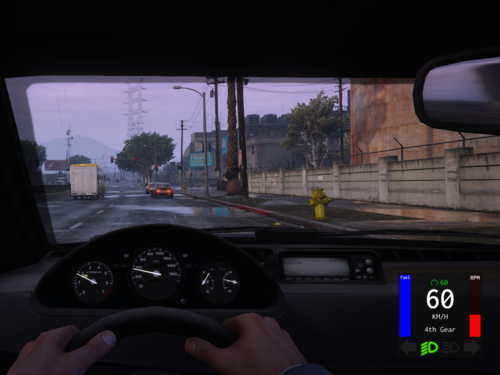 Doesn't seem to work for me. Whenever I attempt to accelerate (holding W) the car does one of three things: flat out doesn't move, creeps ever so slowly, or actually reverses. Also, using the "fullthrottlemodifier" (holding ctrl key) doesn't work while accelerating. Oddly enough, reversing (holding S) seems to work perfectly fine and the "fullthrottlemodifier" also works. Not sure if it's a mod conflict or possibly something else. Also, the steering keys (A & D) don't get taken over by NMF as is stated in the NMF3Settings.xml.
- 330 comments
- 24 reviews
-
-
- 1
-

