Creators: Due to background reprocessing of files, approvals and file security checks may be delayed. Thanks for your patience.

TheFrenchman40
Members
-
Joined
-
Last visited
Everything posted by TheFrenchman40
-
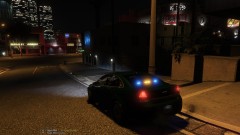
From the album: 10-8 On Duty
-
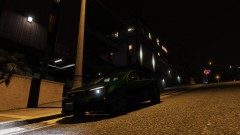
From the album: 10-8 On Duty
-
Hello I'm not sure if this topic has already addressed ... but I hope that a person can help me. Voila when I load the lspdfr 0.4 and my character should spawn in his appartment my game stops and returns to the office but the charge lspdfr 0.4 and my character spawn near a police station all function perfectly that it fact that I can not create more than one character which and quite disturb. Thank you in advance if you found a solution Bonjour je ne ç'est pas si ce sujet a déjà aborder... mais j'espere que qu'une personne pourra m'aider. Voila quand je charger les lspdfr 0.4 et que mon personnage devrais spawn dans son appartment mon jeu s'arrête et retourne au bureau mais que le charge lspdfr 0.4 et que mon personnage spawn pres d'un poste de police tout fonction parfaitement se qu'il fait que je ne peut pas cree plus d'un personnage ce qui et assez dérangent. Merci davance si vous trouvais un solution
-
-
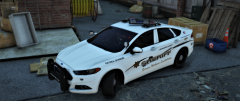 I like this vehicle it and downloadable ?
 -
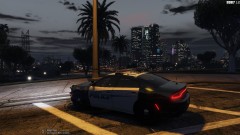
From the album: 10-8 On Duty
-
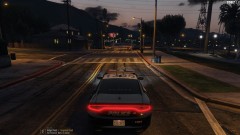
From the album: 10-8 On Duty
-
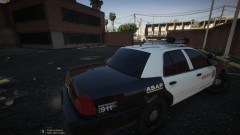
From the album: 10-8 On Duty
-
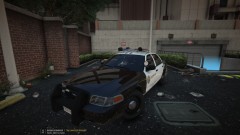
From the album: 10-8 On Duty
-
-
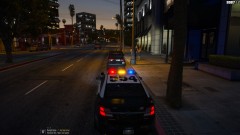
From the album: 10-8 On Duty
-
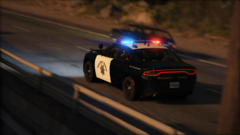 Beautiful and Perfect
 -
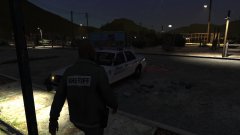
From the album: 10-8 On Duty
-
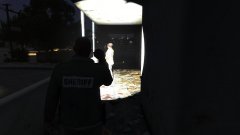
From the album: 10-8 On Duty
-
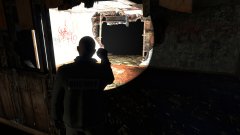
From the album: 10-8 On Duty
-
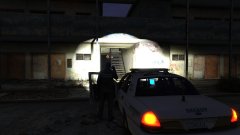
From the album: 10-8 On Duty
-
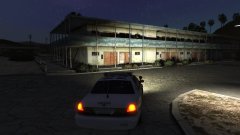
From the album: 10-8 On Duty
-
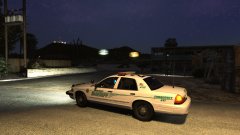
From the album: 10-8 On Duty
-
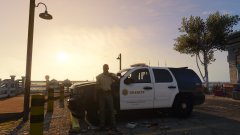
From the album: 10-8 On Duty
-
@SharinganI am standing but he and 11 in the morning in France so it's normal
-
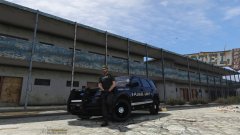
From the album: 10-8 On Duty
-
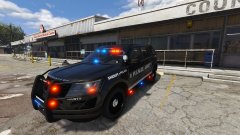
From the album: 10-8 On Duty
-
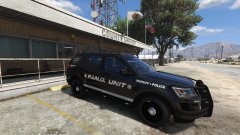
From the album: 10-8 On Duty
-
-
From the album: 10-8 On Duty