
TWISTEDSCOPES
Members
-
Joined
-
Last visited
Everything posted by TWISTEDSCOPES
-
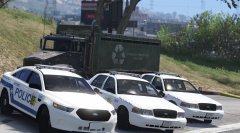 Will This Department It's All Blue but since some people dont like All blue i will be adding an option to change it to red and blue and etc it's still a work in progress and a lot still has to be done
 -
Thanks maybe probably later i'll go down to the station and take some interior shots so i can get a better console
-
From the album: W.I.P Models (GTA V)
Thanks to Kevin DV now i have release perms for his liberty if you guys would like to see this be release let me know, thank you.© TWISTEDSCOPES
-
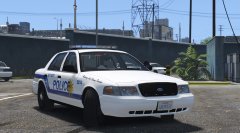
From the album: W.I.P Models (GTA V)
Rate now I'm Working On Key West Police Here's an 06 CVPI Based off the real Car 98% Accurate© TWISTEDSCOPES
-
-
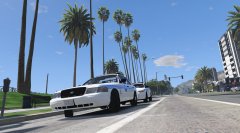 Thanks :)
 -
Thanks
-
thank you :D
-
From the album: W.I.P Models (GTA V)
Just a wonderful view as two miami police cars stop to do a quick foot patrol so i captured this as they were away from their cars Front-https://gyazo.com/0639018cb6e3ade946b003ec34c909e7 Back-https://gyazo.com/125c192508b549fa678c4df8a6b5b6b3© TWISTEDSCOPES
-
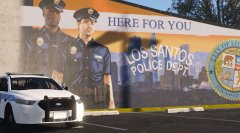 Yeah Your not the only one lol i love taurus
 -
From the album: W.I.P Models (GTA V)
© TWISTEDSCOPES
-
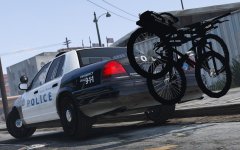 they don't use Lights on bike racks
 -
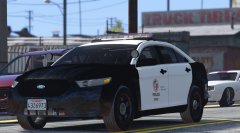 thanks
 -
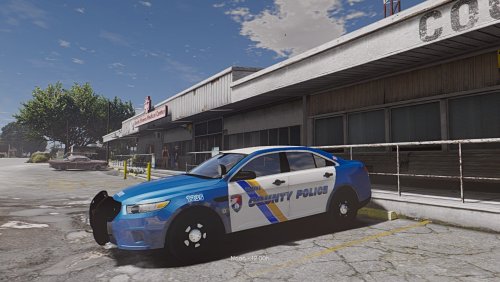 You did a pretty great job for these skins the only thing is that the lines are suppose to be orange overall great job for the skin
 -
Expect a release in a few hours or so
-
It's the dirt mapping but the thing is the dirt mapping is stuck to that.. so you cant clean the car
-
-
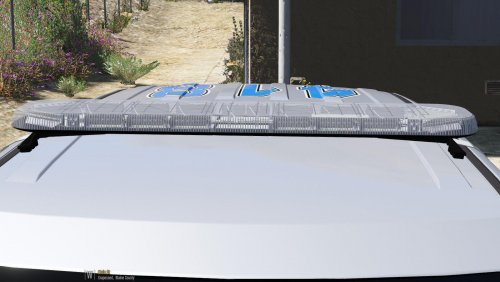 Great jobb
 -
 not a mod it's a model and plus i dont see invisible except behind the tires
 -
-
it doesn't matter and plus im finish on the expedition just waiting on anther author to release their expedition
-
yeah i need to scale them down by both the y and x axis
-
Yeah me either
-
From the album: W.I.P Models (GTA V)
Problems are fixed and everything seems to be going smooth so far...© TWISTEDSCOPES
-