Skip to content
View in the app

A better way to browse. Learn more.

LCPDFR.com

A full-screen app on your home screen with push notifications, badges and more.

To install this app on iOS and iPadOS
  1. Tap the Share icon in Safari
  2. Scroll the menu and tap Add to Home Screen.
  3. Tap Add in the top-right corner.
To install this app on Android
  1. Tap the 3-dot menu (⋮) in the top-right corner of the browser.
  2. Tap Add to Home screen or Install app.
  3. Confirm by tapping Install.

Nydigov

Members
  • Joined

  • Last visited

Everything posted by Nydigov

  1. Antivirus is off completely, still crashes 15-30seconds in.
  2. GTA V works normally, once rage loads its fine (no plugins set to load) , (Manually load or Automatic on rage startup) once LSPDFR loads it crashes within 30seconds.
  3. Still not working, i reinstalled LSPDFR (and deleted any other plugins/scripts) and followed all the above steps new log is below. Game crashes 10-30seconds in, GTA V works fine without ragehook. RagePluginHook.log
  4. unfortunately still c rashing RagePluginHook.log
  5. same crashingRagePluginHook.log
  6. Hi still not working this my new log RagePluginHook_05052021_144829.log
  7. No idea why it is crashing, please check my logs, I looked but am unable to see why it crashes, my gta V works fine without ragehook, once I load LSPDFR it crashed to desktop about 10-30 seconds later. RagePluginHook_04052021_143531.log
  8. Nydigov replied to Nydigov's topic in Legacy
    I just verified cache and I have all files still crashes!!
  9. Nydigov replied to Nydigov's topic in Legacy
    Help please
  10. Nydigov replied to Nydigov's topic in Legacy
    https://gyazo.com/eec37df3c12e6b98c29d6063c65cc80d https://gyazo.com/87d556f0622fd669396585500e4cca55 ELS, els cars, lspdfr+ and traffic policer that's it.
  11. Nydigov posted a topic in Legacy
    No idea why it crashes I am updated on ragehook? https://hastebin.com/akohuwewuw.tex
  12. Thanks you
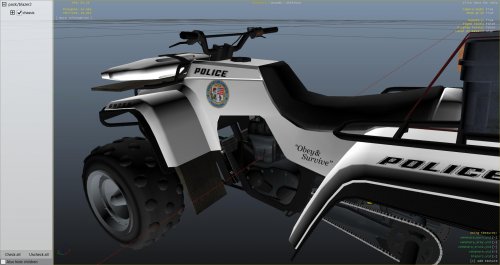
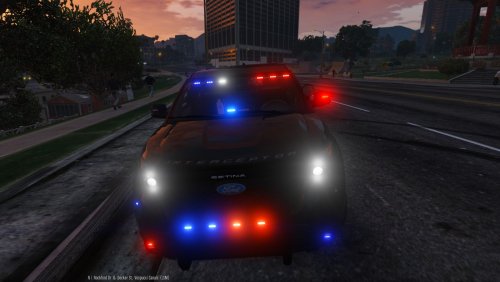
  13. Looks great but where do i put it???

Account

Navigation

Search

Search

Configure browser push notifications

Chrome (Android)
  1. Tap the lock icon next to the address bar.
  2. Tap Permissions → Notifications.
  3. Adjust your preference.
Chrome (Desktop)
  1. Click the padlock icon in the address bar.
  2. Select Site settings.
  3. Find Notifications and adjust your preference.