
Johnnyapples023
Members
-
Joined
-
Last visited
Everything posted by Johnnyapples023
-
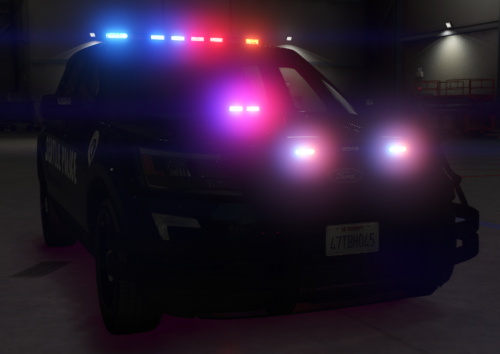 Models look good but I have some stuff to address (Mostly around the FPIU); The Seattle Police Department uses the Federal Signal Legend with the red and blue lens on the newer vehicles in their fleet. (Some older vehicles also have these mounted) The height of the text all over the vehicle needs to be stretched. Further, the SPD doesn't use that style for the Tahoe or Charger. (Also have yet to see the newer model Chargers or a newer model Tahoes in marked use by the SPD but if they were in use they would most likely not use that design.) The American flag is incorrect. Also, the stars of the flag are always the closest part of the flag to the passenger doors. (Like the flag is always being blown by the wind as the vehicle moves forward if that gives an idea.) The SPD does not (as far as my knowing and seeing) have or use Westin Pushbars or further the Westin pushbars with the PIT Bar Elite. Instead, they use the Setina PB100 for Chargers and the Setina PB450L for the FPIU with the Setina Bodyguard PB5. (The PB used is entirely respective to the vehicle.) I like the idea though and just wanted to provide my criticism. Other than that I hope you keep working on making this pack something truly great!
- 14 comments
- 7 reviews
-
-

- 1
-
-
-