JMS
Members
-
Joined
-
Last visited
Everything posted by JMS
-
I was getting the same thing I needed to update open IV and visual V. You might of missed something that needs updating I was getting this too I needed to update open IV and Visual V after that the game launched. RageHook log is in main GTA V folder in the logs folder.
-
No they were last updated in June.
-
Did you update everything? Something that isnt compatible with the new version can cause that. I ran into this what was causing that to happen with mine was open IV and visual V updated them and game launched.
-
I have ELS in my game and it launches with it and the els lights work.
-
same thing was happening to me needed to update visual V and open IV game launched afterwards.
-
If you have visual V and open IV install you need to update them I was getting the same thing I updated them and game launched.
-
Yes FAQ listed below the notice said if your game is updated you have to wait for RPH and LSPDFR to be updated or revert to old version of game.
-
-
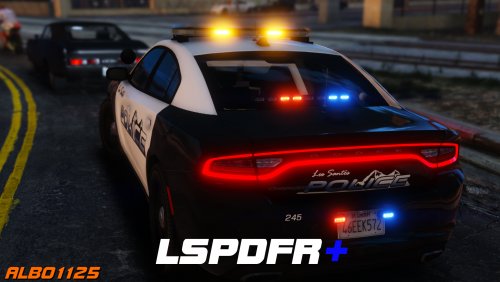 I have 2 of your other packs installed callout and arrest manager. When I installed this one the words on the interaction menu kept overlapping. I was watching a video from Steve the gamer and saw his menu doing the same thing so I screenshot it.
- 1,178 comments
- 137 reviews