


FMO
Members
-
Joined
-
Last visited
Everything posted by FMO
-
-
-
-
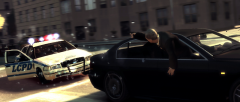
From the album: Legacy Images
Russian criminals try to shake off LCPD officers in a high speed pursuit through Liberty City.© FOwner Designs
-
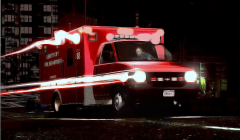 Basically, the effect for the other lights would be at the other side of the ambulance then. Easier said; you won't see it.
 -
From the album: Legacy Images
LCFD Ambulance 88 responds through the dark Liberty night.© FOwner Designs
-
 Soon, my friend.
 -
-
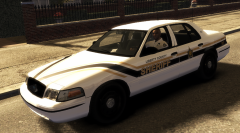
From the album: Legacy Images
Experimental texture. I tried to connect the stripes on the sides to the stripes on the hood in a fluent way. Turned out looking quite cool, if you ask me. Texture coming soon, probably in a pack. Patience is a virtue.© FOwner Designs
-
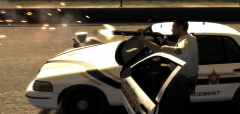
From the album: Legacy Images
An LCSO Traffic Enforcement officer fires his shotgun after a high speed pursuit through Liberty City.© FOwner Designs
-
![International JERR-DAN Wrecker / LCPD [WIP]](//s3-gallery.int-cdn.lcpdfrusercontent.com/gallery/album_657/sml_gallery_8683_657_259851.jpg) Awesome!
Awesome! -
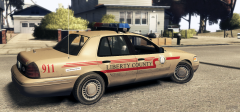
From the album: Legacy Images
Texture by FOwner, model by Accurate Studio. Coming soon.© FOwner Designs
-
 It's quite a long time ago he did.
 -
Oh, before I forget, belt textures are made by Sam.
-
-
 True, haha. I'm just answering your questions, no copyright-bla-bla-bullsh*t fight intended. And yes, you will get it one day. Patience is a great virtue.
 -
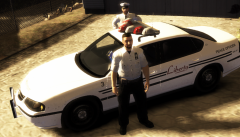
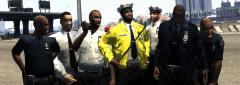
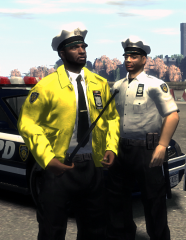
I've read three wrongs and one right here. Answer time! First, I've made those uniforms myself last night, completely from stock. I wanted to have some 'friendlier' looking cops around, therefore the title 'Community Cops'. They are part of a pack of 'friendly' police uniforms, of which I will post pictures later. Second, that means I got nothing of GTAinside, so I got nothing to do with 'new cops for LCPD or somethin'. Sometimes it just happens that things look the same a little. Third, I'm not using ENB. At all. It's just my laptop, I guess. Wanna buy it? At last, the only right thought here is the 'planning on releasing the textures'. Yes, I am planning to do so, and you'll see more soon.
-

![International JERR-DAN Wrecker / LCPD [WIP]](http://s3-gallery.int-cdn.lcpdfrusercontent.com/gallery/album_657/sml_gallery_8683_657_259851.jpg)
