
Clark84045
Members
-
Joined
-
Last visited
Everything posted by Clark84045
-
.png.204ff67a72b29e7d9943e07f8e05e100.png)
From the album: New Fire Skins
-
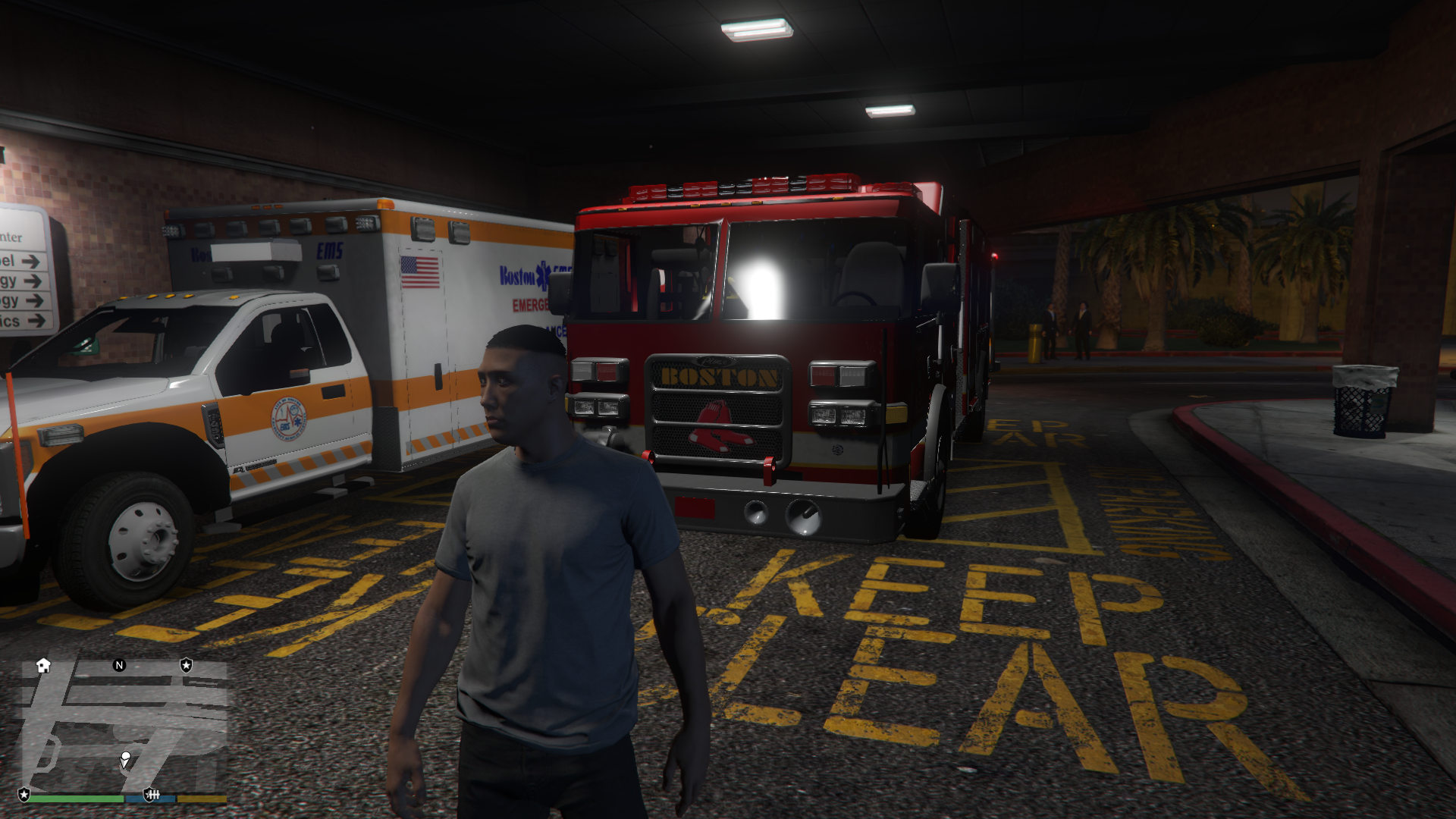
From the album: New Fire Skins
-
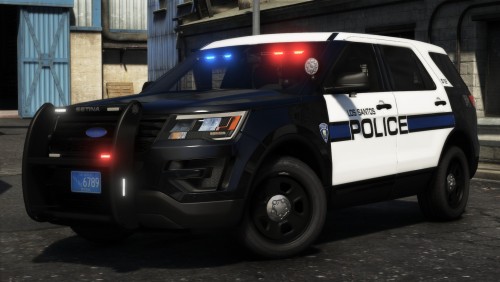 I Love this pack..wasn't too sure about swapping out my previous cars but LCPDFR 4 gave me some new options ..glad I did luv it.. Ive seen pics how do I make the lights all blue
- 63 comments
- 37 reviews
-
-

- 1
-
-
-
 Okay this is beyond ridiculous. I have downloaded this EUP Law and Order 4 times and used the .OIV install and updated EUP Menu and still nothing says I don't have Law and Order installed. When I look it's install files sup not eup. Am I missing something???
- 2,346 comments
- 236 reviews
-
-
Not sure what's up with my apartment TV but I think the cable is out. Nothing happens when I turn it on?
-
cool...
-
but is RPH ready?
-
Sweet, I like to be able to customize and now I'm super excited for this new update, as they say it's a game changer 🙂
-
Silly question perhaps but wanted to ask anyway, with the new release coming out and all the improvements will the update allow you to have different areas assigned to different PD/FIRE departments such as RDE added?
-
How can i put this:
-
-
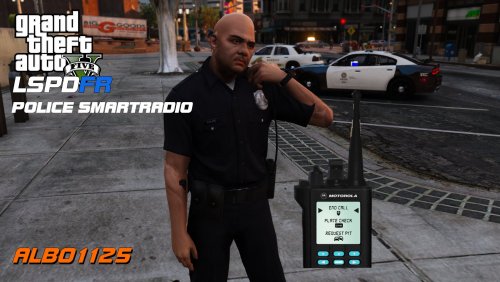 I like it...but you took away my ability to customize my unit response that I do not like..I used to have my custom corner now stuck back to the default.
- 1,196 comments
- 127 reviews
-
yup update killed my game good.... Just had everything perfect and boom every time, Check out flip switch games they are working on an Emergency game similar to GTAV so as soon as that comes out later Rockstar.
-
From the album: New Fire Skins
-

From the album: New Fire Skins

.png.204ff67a72b29e7d9943e07f8e05e100.png)