
GravelRoadCop
Members
-
Joined
Everything posted by GravelRoadCop
-
Whelen Cencom Sapphire judging from a few youtube videos. You can find it here :
-
Hard to tell, it sounds like they are using GTA V vanilla siren tones. If it helps, download Modern Siren Pack as it offers a variety of siren tones for your pleasure.
-
Federal Signal Smart Siren SSP3000B. You can find this here :
-
It's a Feniex siren, just like the lights they're using on their vehicles. https://www.feniexindustries.com/emergency/typhoon-full-function
-
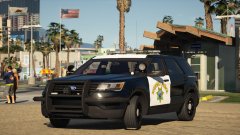
Nice !! I dig it. This is my version;
-
-
From the album: GravelRoadCop
Modern Siren Pack has been updated with a new set of clean modern CHP siren tones, now available for download. Preview video below. -
-
Modern Siren Pack - new CHP siren.
-
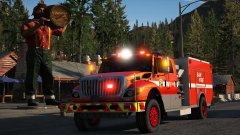 20180923201444_1.jpg
-
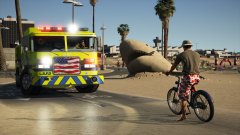 LSFD Pierce XT
-
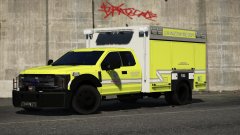 LSFD S.O.B.E.R
-
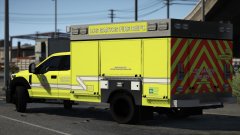 LSFD S.O.B.E.R
-
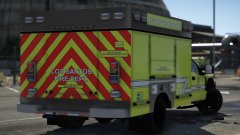 LSFD S.O.B.E.R
-
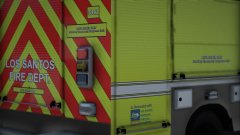 LSFD S.O.B.E.R
-
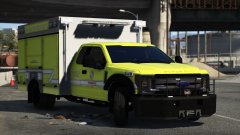 LSFD S.O.B.E.R
-
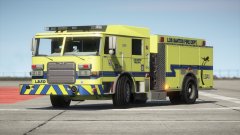 L.S.F.D Los Santos International Airport Pierce Arrow XT
-
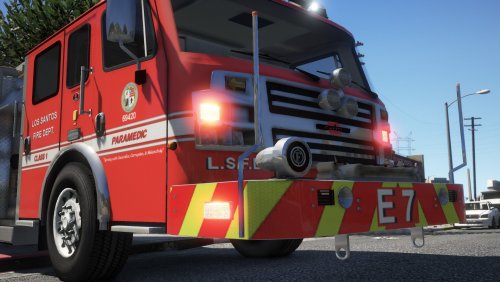
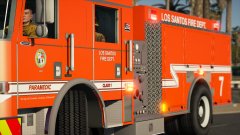 LSFD Engine 7 Pierce Arrow XT
-
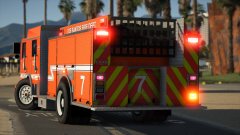 LSFD Engine 7 Pierce Arrow XT
-
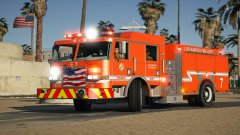 LSFD Engine 7 Pierce Arrow XT
-
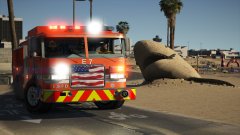 LSFD Engine 7 Pierce Arrow XT
-
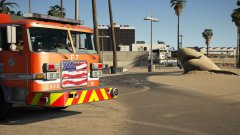 LSFD Engine 7 Pierce Arrow XT
-
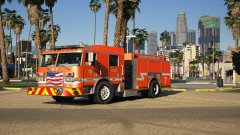 LSFD Engine 7 Pierce Arrow XT
-
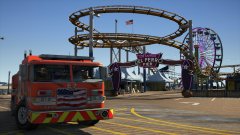 LSFD Engine 7 Pierce Arrow XT
-
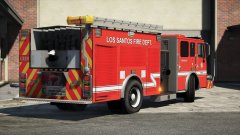
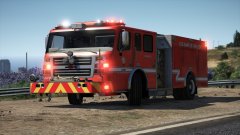 LSFD Engine
-
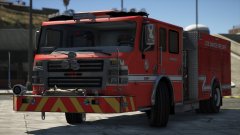
 LSFD Engine
-
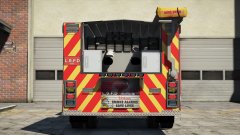
 LSFD Engine
-
 LSFD engine
-
-
From the album: GravelRoadCop
-
-
SOBER Units
-
From the album: GravelRoadCop
-
It's hard to tell as many whelen siren models have similar sounding wail/yelps. But if it helps, I have several different models available for download.
-
-
 - Federal Signal Smart Siren 3000 ( LSPD ) - Federal Signal Touchmaster Siren ( Sheriffs ) - Federal Signal 'Q' Siren ( Fire truck ) - Dual Whelen Sirens ( Ambulance ) - Whelen Motorcycle Siren ( Police Bike ) - SoundOff Signal 380 series siren ( FIB. )
- 221 comments
- 40 reviews
-
-

- 1
-
-
-
-
From the album: GravelRoadCop
Los Santos Fire Department Sobriety Emergency Response Unit truck, template created by me. -
From the album: GravelRoadCop
Los Santos Fire Department Sobriety Emergency Response Unit truck, template created by me. -
From the album: GravelRoadCop
Los Santos Fire Department Sobriety Emergency Response Unit truck, template created by me. -
From the album: GravelRoadCop
Los Santos Fire Department Sobriety Emergency Response Unit truck, template created by me. -
From the album: GravelRoadCop
Los Santos Fire Department Sobriety Emergency Response Unit truck, template created by me. -
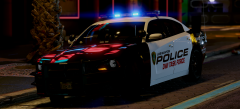 I like the font you used. What's the name of it ?
 -
-