
Hadyfaik
Members
-
Joined
-
Last visited
Everything posted by Hadyfaik
-
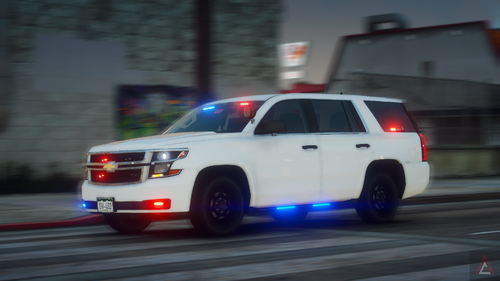 Looks great man! I cant clearly see so i thought id ask, are the speed dials working ?
 -
-
 good work!
 -
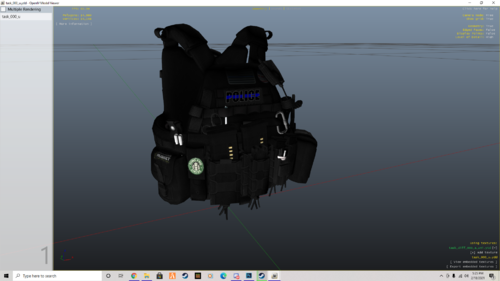 looks really good!
 -
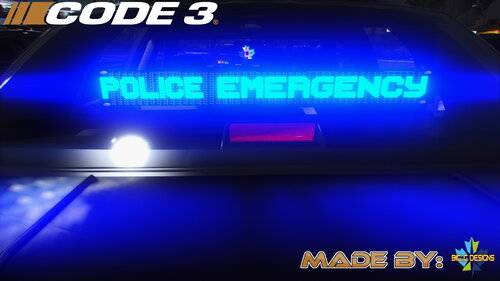 holy smokes! this is amazing i was wondering if the GMC has working speeddials in the interior view?
- 58 comments
- 4 reviews
-
 Love your work with the Panic Button Callout. The little audio file that goes "Officer needs assistance!" Adds motivation to attend the callout
- 36 comments
- 14 reviews
-
-

- 1
-
-
-
.thumb.png.073a5d87d774ca539d760e3bf56f6594.png) lol what is this xD
lol what is this xD -
-
 I love the idea
 -
-
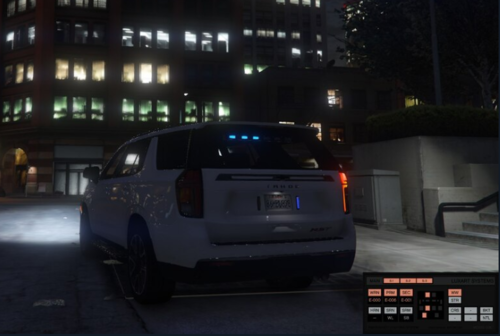 Every car works fine with traffic stops, im just saying when you have time try to make a traffic stop with LSPDFR ull see the issue mate
- 9 comments
- 2 reviews
-
I am unable to make traffic stops with the car, i think its an ELS file problem
- 9 comments
- 2 reviews
-
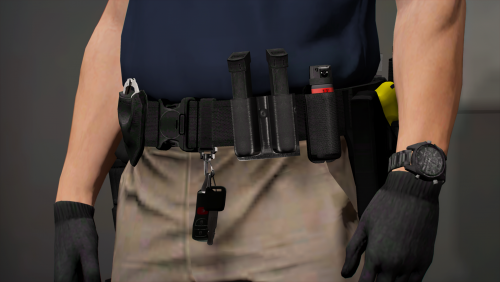 looks good ! nice work
 -
-
-
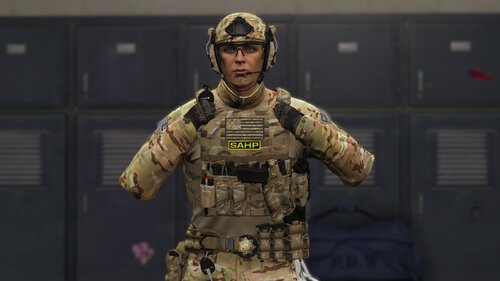 Hmm, after downloading it seems like the files are not opening on windows image viewer/corrupt
- 43 comments
- 1 review
-
-
.thumb.png.791f9c11f7748109be8c32d7fe4ce16a.png) Looks ravishing! Does it have shattering windows and properly placed speed dials? 😄
Looks ravishing! Does it have shattering windows and properly placed speed dials? 😄- 22 comments
- 4 reviews
-
-
-
-
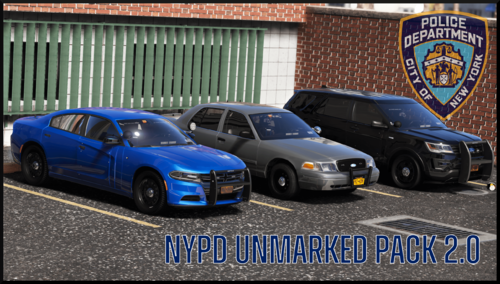 Oh ok, maybe you are right because I do use NaturalVision Evolved Just that one , the impala is working fine ! My apologies!! It is fixed now. the problem was me not the mod. I deleted the comment and changed my ratings to 5 stars!
- 78 comments
- 10 reviews
-
-

- 1
-
-
-
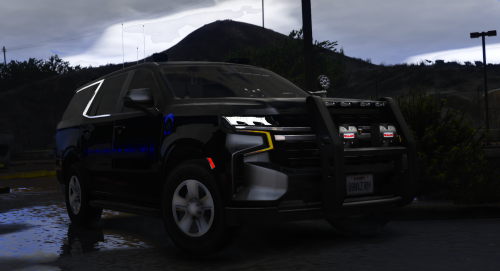 Looks fantastic, does the speeddials work?


.thumb.png.073a5d87d774ca539d760e3bf56f6594.png)


.thumb.png.791f9c11f7748109be8c32d7fe4ce16a.png)