



flwpheonix
Members
-
Joined
-
Last visited
Everything posted by flwpheonix
-
From the album: WIP
Added the retaining clips. -
From the album: WIP
-
From the album: WIP
-
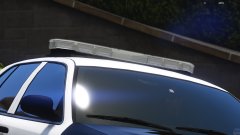
From the album: WIP
-
-
-
-
send me your z3d file...I will take a look at it..
-
Ok...from that last screen (step) click on UV#2
-
ok...Walk me thru the steps of what you are doing.... Also, make sure you change your view from UVW Mapping to something like front before trying to do any mapping. I have noticed a couple of times when trying to edit the UVWs and I still have that screen up, nothing will show up...
-
ok...stupid question...but do you have a texture assigned in the material?
-
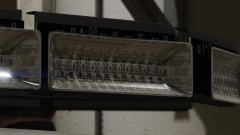
From the album: WIP
Texturing on the diffuser tube came out perfect!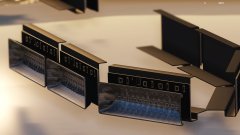
From the album: WIP
Working on setting up materials.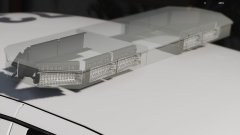
From the album: WIP
First test in game. Need to work on the Specular mapping.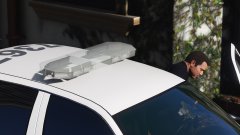
From the album: WIP
First test in game of RX2700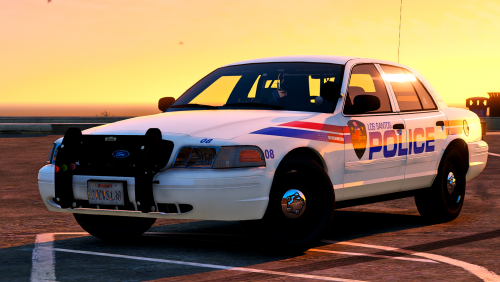 No problem. Make sure you use the primary channel. under part properties make sure primary is checked and set UV to 3.
- 39 comments
- 13 reviews
-
-

- 1
-
You know Husky....you could have set the alpha in vertex mode to black, and there wouldn't be any tint issue.... Just a bit of friendly advice...- 39 comments
- 13 reviews
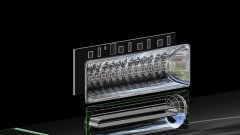
From the album: WIP
Started working on the PCB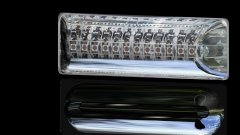
From the album: WIP
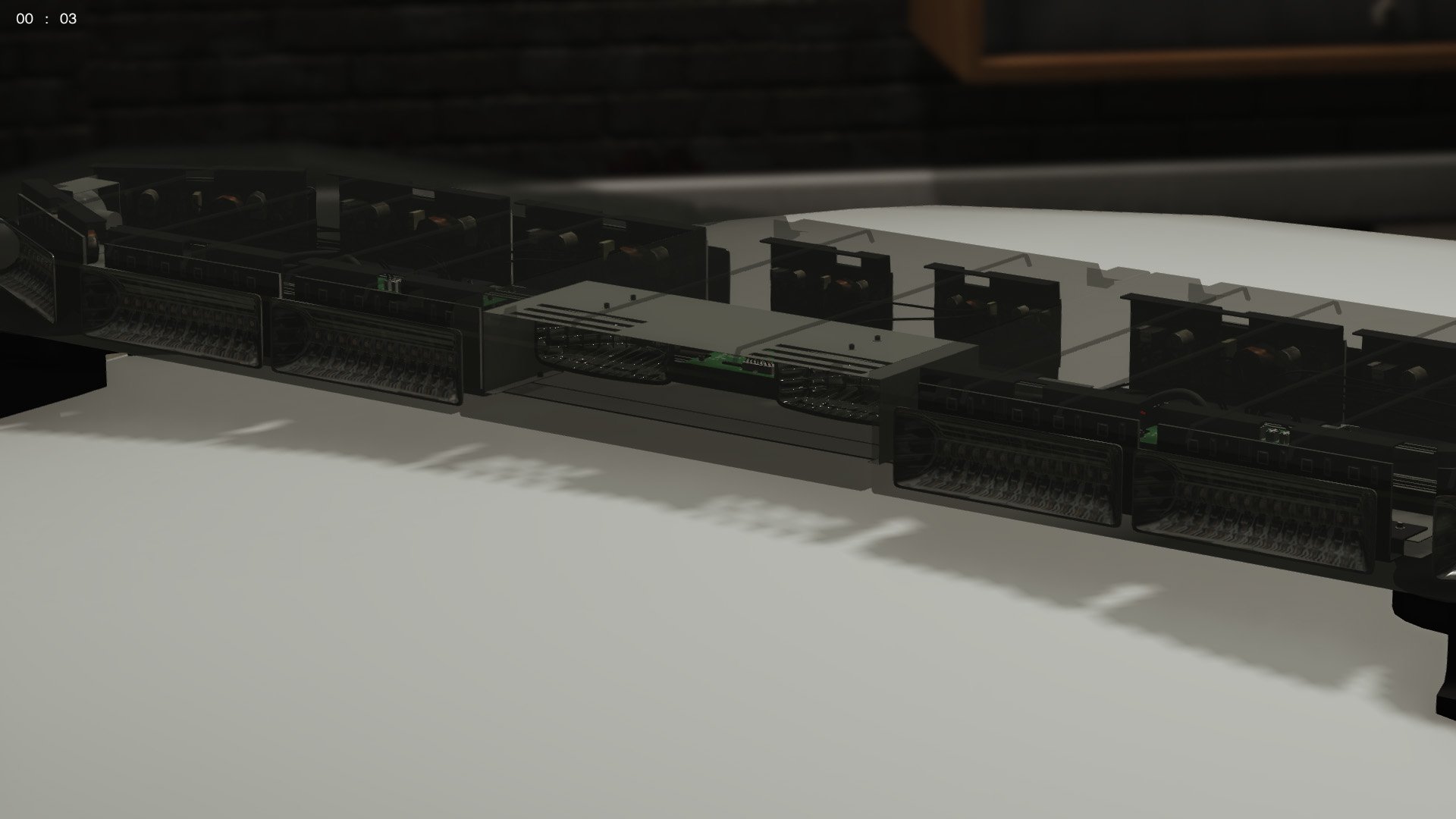
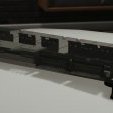
Working on a C3 RX2700 Bar. Upper module is a Gen1 and lower is a Prizm moduleAnytime! I know how frustrating it can be matching fonts up...No problem! A thing I have found is make sure you are using a clear enough reference picture. The clearer the picture the better the results will be.Here you go.... https://www.fontpalace.com/font-download/Aachen+Bold/ Also for future reference, this is the site I use to identify fonts.... https://www.myfonts.com/WhatTheFont/I encountered this today with one of my models...Found the culplrit to be a copy of chassis in the hierarchy.


.png.faf7464c8e8142b13a8770cbdf60cdc0.png.16e3aab353369c12356955fbc5bb6561.png)

