Element
Members
-
Joined
-
Last visited
Everything posted by Element
-
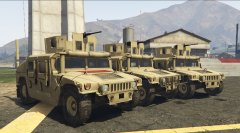 Nice.
Nice. -
I`m sry but your hard drive does appear to be genuinely broken.
-
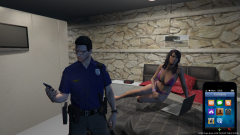 Eventually i`m sure. That`s not being released. It was adjusted on the Sheriff units though.
 -
-
Just getting ready for work.
-
That is a sweet build, I prefer Nivida Cards but that is a really nice Radeon. That processor is epic. What operating system you putting on it? I would recommend Win 10 with it. I upgraded to 10 from 7 64 bit and all my games got a addition 10 - 15 FPS, I guess Win 10 uses less resources. I`m running a fully loaded GTA IV at 85 fps average and that build is definitely more powerful then mine. You should be killing fps in IV and V.
-
-
-
-
-
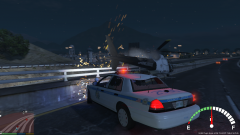 First time i`ve had a heli crash land on my car at 65 mph.
 -
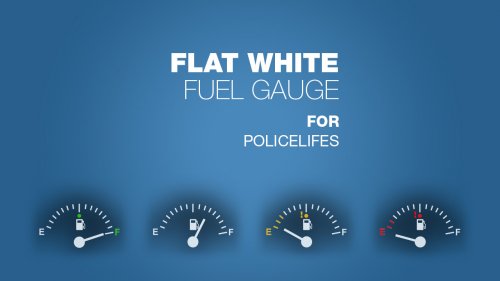 This was much needed. Tyvm.
 -
-
-
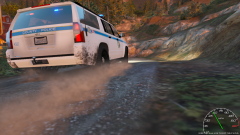 Baltimore County 2015 Chevy Suburban. Out now in V1.6 Baltimore County and City Pack Download
 -
.png.9e356f13fe9c7ff25d4e956e8f1ed08c.png) Your lights are so much brighter how can that be?
Your lights are so much brighter how can that be? -
-
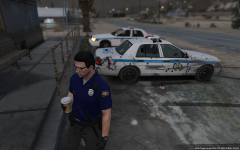 When your waiting for your Sgt to get back so he can check out his freshly total patrol car.
 -
-
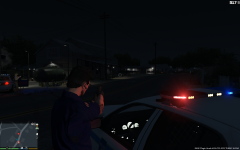 I have Teir3, LED and Spotlight V6, ENB, Post FX maxed and my lights still are not bright enough any tips?? I want them to be blinding
 -
 Ruins your whole day that kind of thing.
 -
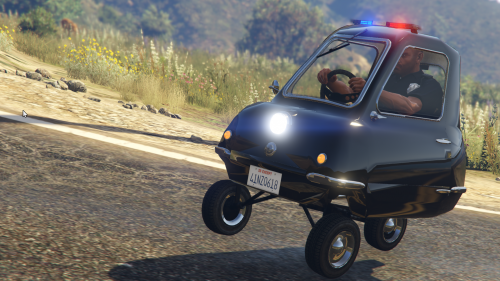
.png.812066406ffaf8bc52d0948054d85360.png) "My bad I hit a cat".
"My bad I hit a cat". -
-
I just started getting this error last night as well.
-




.png.9e356f13fe9c7ff25d4e956e8f1ed08c.png)


.png.812066406ffaf8bc52d0948054d85360.png)