
amenbrother
-
Joined
-
Last visited
Everything posted by amenbrother
-
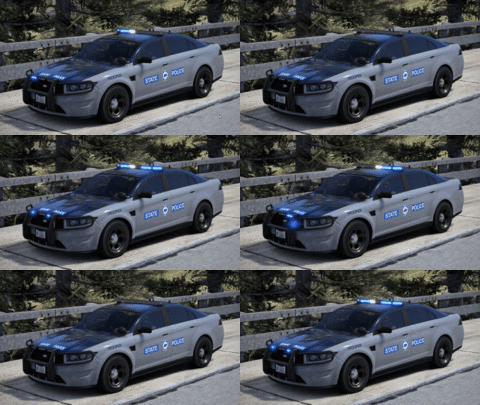
From the album: San Andreas Regional LITE - Development Album
yea vsp based once again planning on actually releasing this one for once -
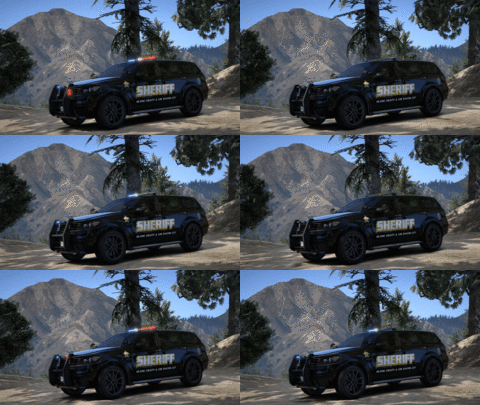
From the album: San Andreas Regional LITE - Development Album
gres -
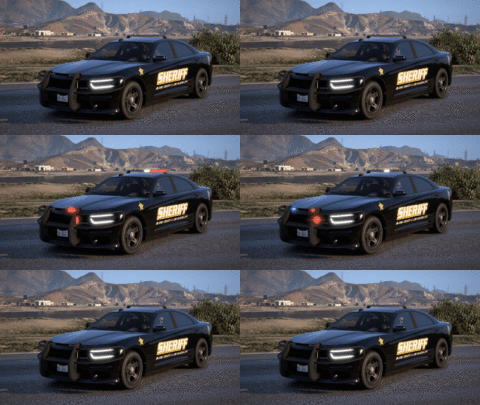
From the album: San Andreas Regional LITE - Development Album
black car -
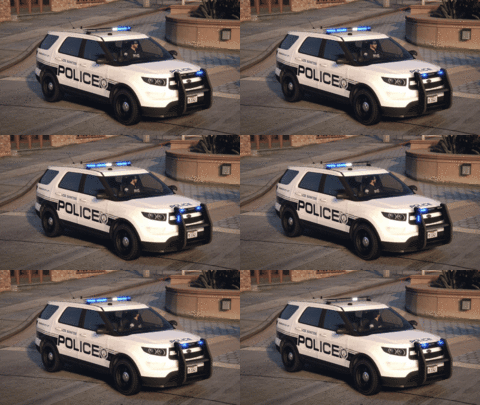
From the album: San Andreas Regional LITE - Development Album
gif style -
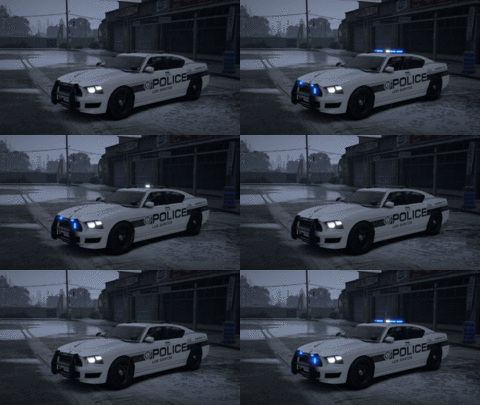
From the album: San Andreas Regional LITE - Development Album
using CoreFX -
-
If you're using UltimateBackup, go into the UltimateBackup folder (Grand Theft Auto V>plugins>LSPDFR>UltimateBackup) and open the files named DefaultRegions.xml and SpecialUnits.xml. Then, simply search up "policeb" using Notepad (or whichever text editor you might use) and replace that with whichever vehicle you want to use. If you're using the LSPDFR menu, go into the data folder (Grand Theft Auto V>lspdfr>data) and open the file named agency.xml. Again, search "policeb" using your text editor of choice and replace it. This process may depend on the mods you're using, but if you're running default LSPDFR and/or default UltimateBackup, this is how to change them.
-
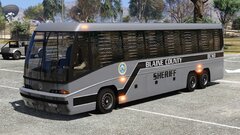 The full livery pack (with required mods) is available for download here:
 -
-
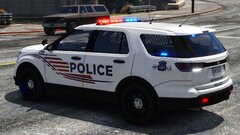 [LSPD} Vapid Scout II (Rear)
-
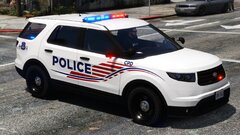 [LSPD] Vapid Scout II
-
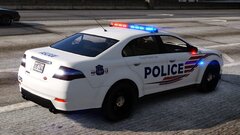 [LSPD] Vapid Torrence (Rear)
-
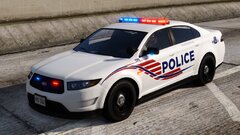 [LSPD] Vapid Torrence
-
 San Andreas Regional - A warm Happy New Year from the BCSO!
-
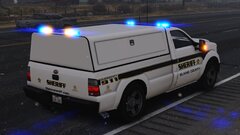 [BCSO] Vapid Sandking (Rear)
-
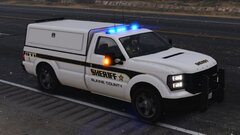 [BCSO] Vapid Sandking
-
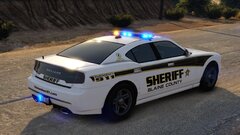 [BCSO] - Bravado Buffalo S (Rear)
-
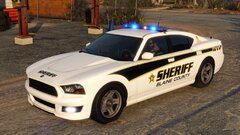 [BCSO] Bravado Buffalo S
-
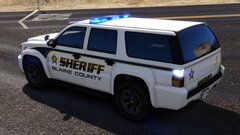 [BCSO] - Declasse Alamo (Rear)
-
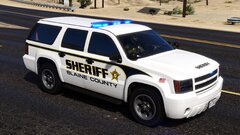 [BCSO] Declasse Alamo
-
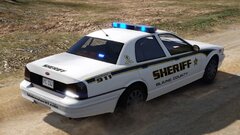 BCSO - Vapid Stanier Police Interceptor (Rear)
-
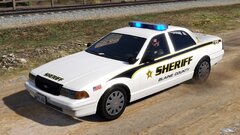 BCSO - Vapid Stanier Police Interceptor
-
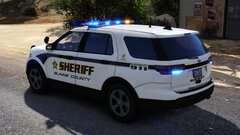 BCSO - Vapid Scout II (Rear)
-
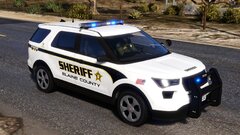 BCSO - Vapid Scout II
-
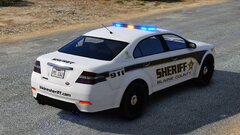 BCSO - Vapid Torrence Police Interceptor (Rear)
-
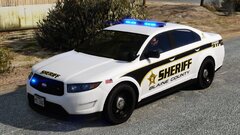 BCSO - Vapid Torrence Police Interceptor
-
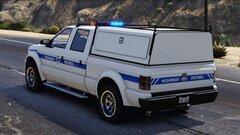 SAHP - Vapid Sadler (Rear)
-
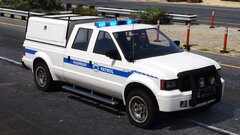 SAHP - Vapid Sadler
-
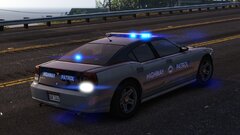 SAHP - Bravado Buffalo PPV (Rear)
-
-
From the album: San Andreas Regional - A Development and Roleplay Project
ee -
From the album: San Andreas Regional - A Development and Roleplay Project
e -
From the album: San Andreas Regional - A Development and Roleplay Project
we aren't here to help -
From the album: San Andreas Regional - A Development and Roleplay Project
DC metro PD style -
From the album: San Andreas Regional - A Development and Roleplay Project
For all LSPDFR lovers, the BCSO wishes you a very Happy New Year! Today marks one month since this project originally started, and I have more confidence than ever in it! I will be starting work on the liveries for the LSPD, so look forward to seeing more in the near future. Once the main suite of LSPD vehicles are finished, I will be releasing a beta version of the pack, including all previously shown liveries, for all to enjoy! -
From the album: San Andreas Regional - A Development and Roleplay Project
yeeeeehaw -
From the album: San Andreas Regional - A Development and Roleplay Project
the final patrol vehicle for the BCSO! now on to the LSPD -
From the album: San Andreas Regional - A Development and Roleplay Project
nice -
From the album: San Andreas Regional - A Development and Roleplay Project
i had to scrounge for a WHILE to find a reference image for this -
From the album: San Andreas Regional - A Development and Roleplay Project
i never got why no lore vehicle has a gas flap or trunk handle -
From the album: San Andreas Regional - A Development and Roleplay Project
sherf -
From the album: San Andreas Regional - A Development and Roleplay Project
rear side of old guy updated -
From the album: San Andreas Regional - A Development and Roleplay Project
old guy updated -
Yeah, sadly the lore friendly vehicles are not commonly made as ELS. Wish they were, it's just more user friendly.
-
Thanks! This is actually a non-ELS, I'm sad to say in your case. However, these are all addon packs, and I plan on including any configs to make the process easier.
-
From the album: San Andreas Regional - A Development and Roleplay Project
rear