


WestsideTrooper
Members
-
Joined
-
Last visited
Everything posted by WestsideTrooper
-
 I'm getting an ELS Key Lock Active error message. Any idea on how I can fix it? I also notice the background is blurry and disappears.
- 2,706 comments
- 241 reviews
-
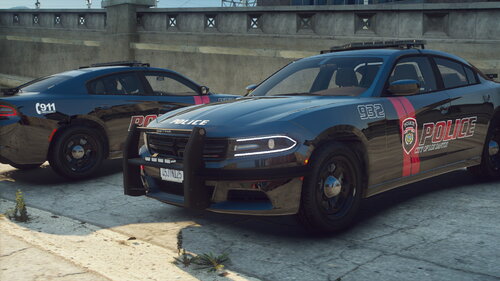 Hey, I followed the steps you outlined above but for some reason I'm still only seeing the default vehicles in my garage and when using the prompt in Rage. Do you have any other suggestions that may fix my issue? Note: I used patch day 26 since it's the latest version. I'm new to this sort of thing so any help would be appreciated. Also unsure if there's a fee for using the vehicles if so let me.
- 24 comments
- 2 reviews
-
Same here. Beyond frustrated. I deleted and redownload the files following the steps outlined in both the video as well as the script seen on https://www.lcpdfr.com/lspdfr/how-to-install/ and it still isn't working for me. Could not hook game process. Insufficient permissions or bad anti-virus. There has to be a simple fix! Can someone write out the process or create a short video on the proper way of setting it up?
