ErinLindsay
Members
-
Joined
-
Last visited
Everything posted by ErinLindsay
-
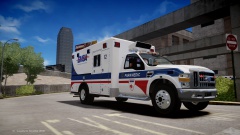
From the album: Skins
A requested skin by a fellow LCPDFR member! Alotta Hard Work went into this! Release? Let me know what you guys think! Click the GREEN ARROW to let me know!!! -
Cool deal!
-
Thanks, the EMSA Ambulance is already done, be looking in my gallery for updates!
-
Yeah! haha!
-
Stupid b*tch LOL
-
Ok LOL
-
You gotta get that 4 page essay done first! LOL!!!
-
I am already doing this for him so no worries
-
I would be happy to do this but I am kinda booked! If no one does this just PM me and I will see what I can do! In the meantime get GIMP, its free and you can make all sorts of skins with it. This is a very easy skin to make BTW.
-
If you are playing TBOGT go to: <TBOGT, common, data, visualsettings> People commonly don't change the visual settings for TBOGT, and instead they change the EFLC visualsettings. (This only works for TBOGT) I assume you have that. Change it to: # Other emissive lights car.defaultlight.emissive.on 100.00 (higher the number the brighter) car.defaultlight.emissive.off 0.05 car.brakelight.emissive.on 12.00 car.brakelight.emissive.off 0.05 car.middlebrakelight.emissive.on 12.00 car.middlebrakelight.emissive.off 0.05 car.reversinglight.emissive.on 12.00 car.reversinglight.emissive.off 0.10 car.extralight.emissive.on 100.00 (higher the number the brighter) car.extralight.emissive.off 0.05
-
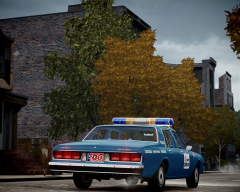 "Nice pic, very original!"
 -
ARMA 3 then
-
![[WIP] 2013 Ford F450 - FDNY ambulance](//s3-gallery.int-cdn.lcpdfrusercontent.com/gallery/album_547/sml_gallery_2101_547_3870.png) Let me know if you need help. I am very good at replicating textures. Look at my Wyoming Med Center Skins. Just PM me if you do! Thanks
Let me know if you need help. I am very good at replicating textures. Look at my Wyoming Med Center Skins. Just PM me if you do! Thanks -
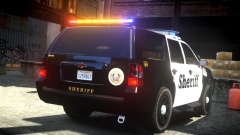 What software do you use to take screenshots? This looks great!
 -
-
Great JOB! Release date? Saturday the 15th?
-
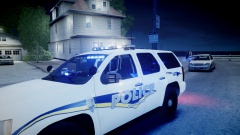 See link above ^^^
 -
Can't wait for release
-
Nice!!!
-
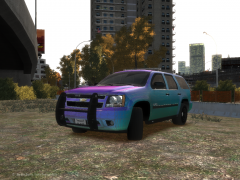 Yours looks nice! sgrt scales maybe you could add mirror lights, and change that rambar to a wraparound one?
 -
Yeah... maybe a Fedsig Valor? You got the wheel size right at least. Most people wheels are too big!
-
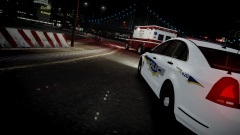 Brand new to the Birmingham PD (Alabama)!!! Gonna try KevinDV's though.
 -
Fire and EMS Stuff
-
From the album: Fire & EMS
Brand new Chevy Caprice! -
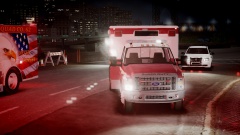
From the album: Fire & EMS
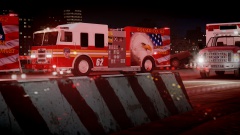
Rescue 32 on scene

![[WIP] 2013 Ford F450 - FDNY ambulance](http://s3-gallery.int-cdn.lcpdfrusercontent.com/gallery/album_547/sml_gallery_2101_547_3870.png)