


ErinLindsay
Members
-
Joined
-
Last visited
Everything posted by ErinLindsay
-
 Rambar looks wrong also. Ok, thanks. There are holes there like you said. The rambar is for show and is not final.
 -
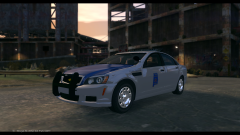 Its a WIP
 -
From the album: Vertex3D's WIPs
-
From the album: Vertex3D's WIPs
Not sure why the hubcaps don't show in game so this will do for now. -

From the album: Misc
IronicRainbow's Charger -
-
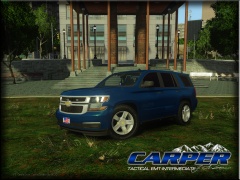 very nice! Are you really a tactical medic???
 -

From the album: Vertex3d's Scratch Made Parts
-
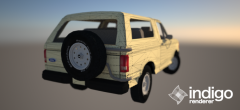 oh nice man!!!
 -
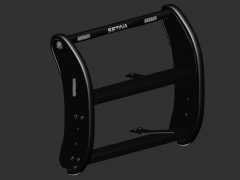 HAHA, this is a new one!
 -
From the album: Vertex3d's Scratch Made Parts
2 hours to do... I wanted this for a long time. -
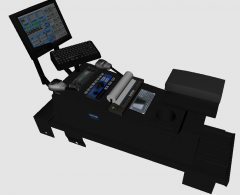 what program is this?
 -
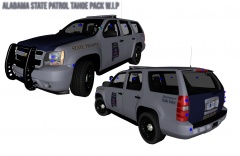 OH HELL YES!
 -
 :O Das nice man!
 -
![Kevin499's Slicktop Tahoe [WIP]](//s3-gallery.int-cdn.lcpdfrusercontent.com/gallery/album_2681/sml_gallery_138650_2681_1358749.png)
From the album: Misc
-
 Nice models Kevin! :P
 -
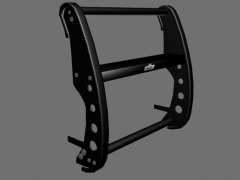
From the album: Vertex3d's Scratch Made Parts
40 minutes to make and UV Map -
-
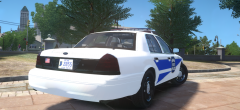 What are your PC specs????
 -
From the album: Vertex3d's Scratch Made Parts
-
![[WIP]Dodge Charger 2013](//s3-gallery.int-cdn.lcpdfrusercontent.com/gallery/album_2498/sml_gallery_4103_2498_137984.png) Awesome guys!! Jason if you made the interior, you did a Fabulous job.
Awesome guys!! Jason if you made the interior, you did a Fabulous job. -
 I love the blur!
 -
What mouse do you have?
-
I has no idea
-
Misc goofy images



![Kevin499's Slicktop Tahoe [WIP]](http://s3-gallery.int-cdn.lcpdfrusercontent.com/gallery/album_2681/sml_gallery_138650_2681_1358749.png)
![[WIP]Dodge Charger 2013](http://s3-gallery.int-cdn.lcpdfrusercontent.com/gallery/album_2498/sml_gallery_4103_2498_137984.png)
