
OfficerVisvim
Members
-
Joined
-
Last visited
Everything posted by OfficerVisvim
-
-
-
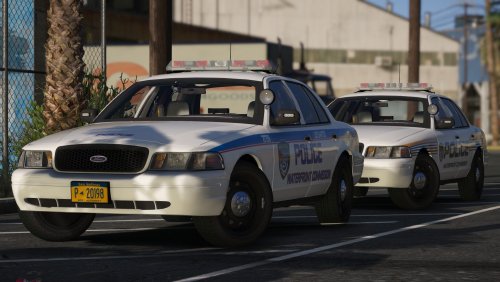 The incredible work you've been putting into all of these models is appreciated
- 21 comments
- 8 reviews
-
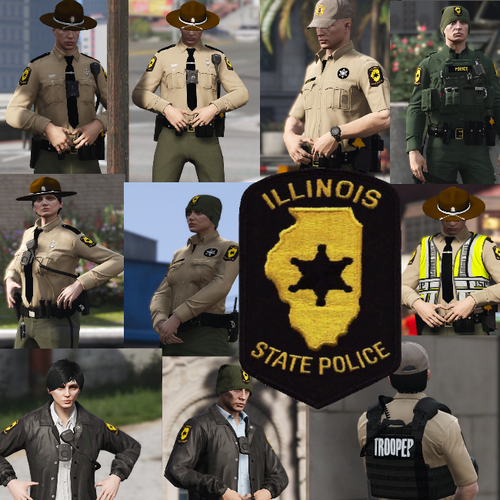
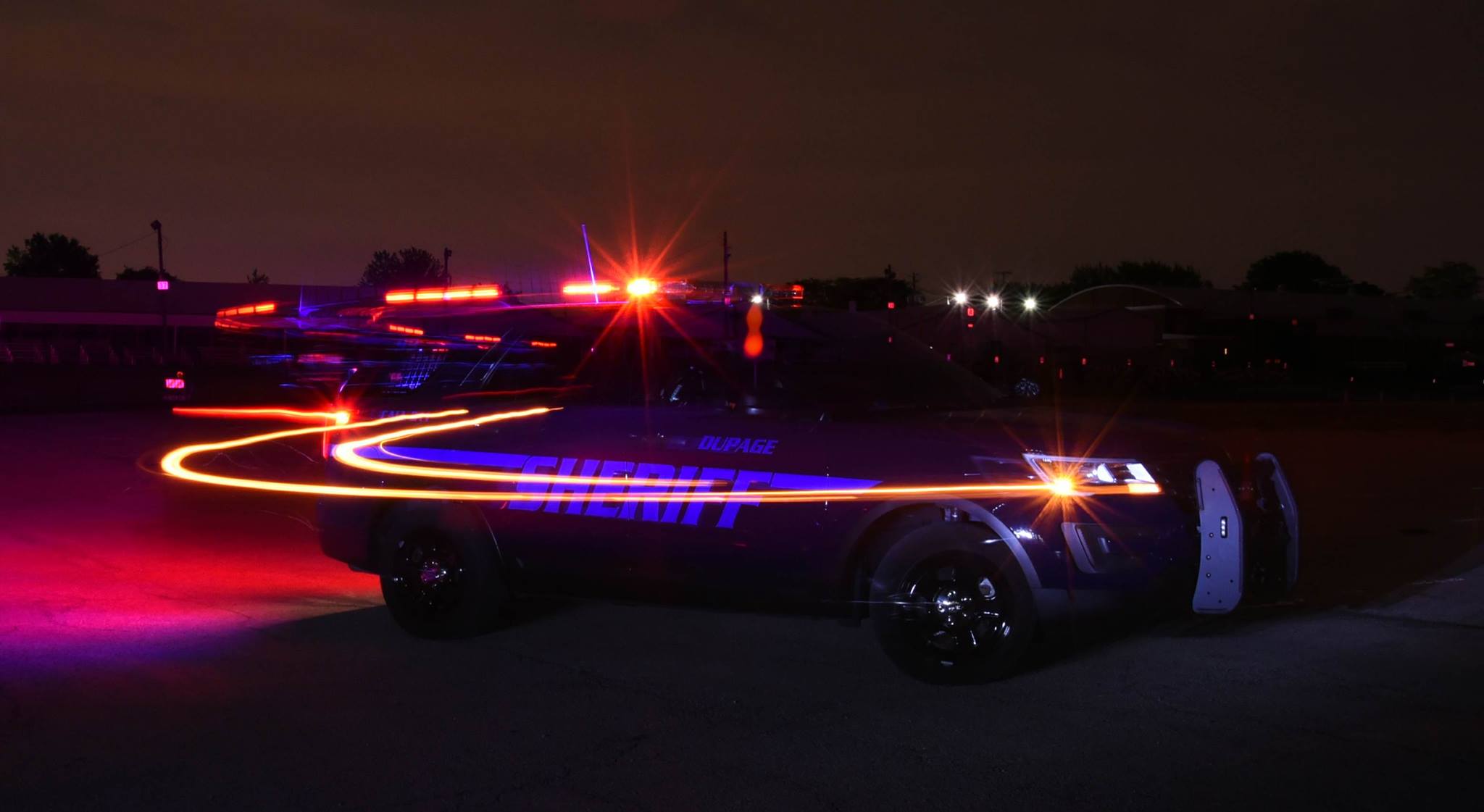
 Do an Illinois native a solid and release these ISP based skins, for meee?
 -
-
 is it Coming Soon-Ish, sort of a bit™, is it really?
 -
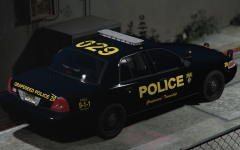
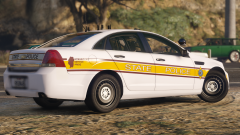
 That Impala is sex, need it in my life.
 -
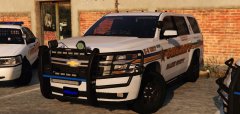 "will be release sometime tomorrow" *dies inside*
 -
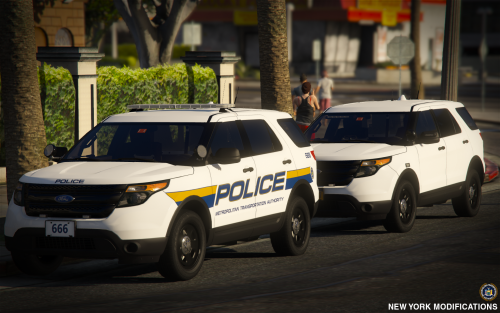 Some of my favorite models of recent memory, can't wait to see what else you have coming!
- 13 comments
- 12 reviews
-
-

- 1
-
-
 b0000i those are gorgeous
 -
 For when gang violence in Grove St gets so bad you need to call in Marine Corps Special Forces
- 9 comments
- 8 reviews
-
-
- 2
-
-
-
-
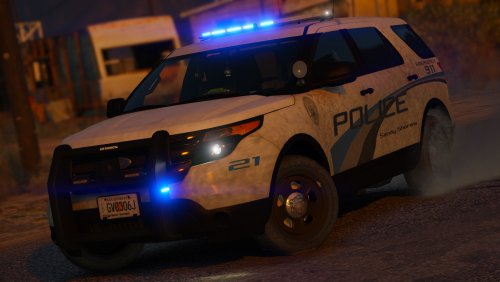 This is awesome, Gump. Good to see you back! Would love to see this setup on one of your famous Tahoe's
- 27 comments
- 27 reviews
-
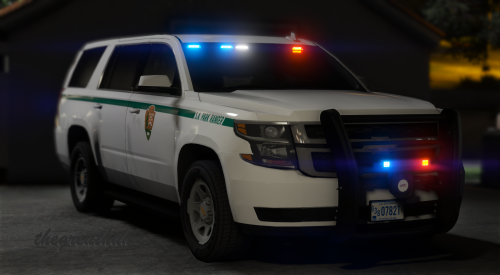
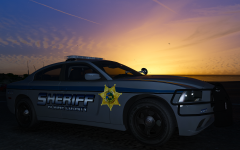 Can't wait for all of these, they look great! Do you still plan on releasing all of the park units?
 -
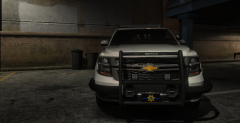 So damn good!
 -
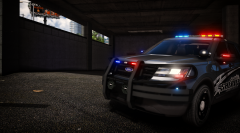 I just really need all these models you've been teasing to finally be released
 -
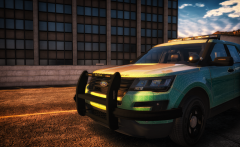 You're killing me with all these models, man. So good!
 -
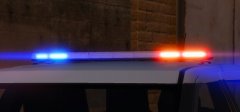 Pretty sweet, sir!
 -
-
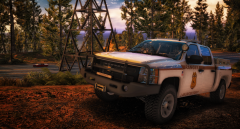 Really excited for this and your Tahoe, any eta?
 -
-
-
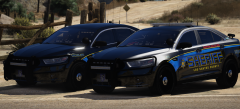 The lighting on these is pretty intense haha
 -
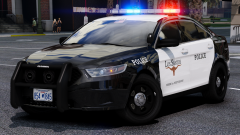
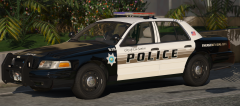 Referring to his finished LSPD pack that he said is releasing "VERY soon" above.