TheKeith
Members
-
Joined
Everything posted by TheKeith
-
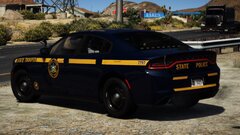 Lookin clean b0i
 -
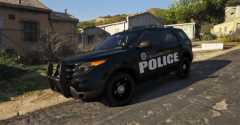
From the album: FiveM cars
It's either OKCPD or OCPD, I don't know anymore. -
-
-
If you need any up close pics I got a 91 GT in real life.
-
.png.763bd089e69c70eb7b8dfa90594f6e10.png)
From the album: FiveM cars
-
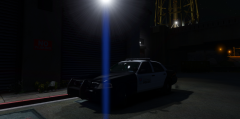
From the album: FiveM cars
-
-
-
-
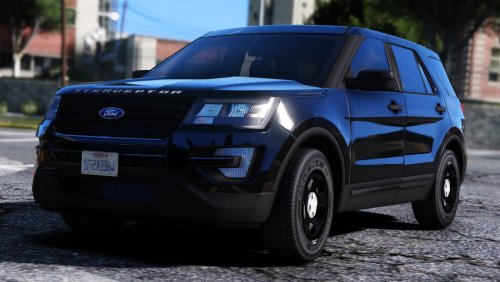 Sweet shit now I can use the updated version.
 -
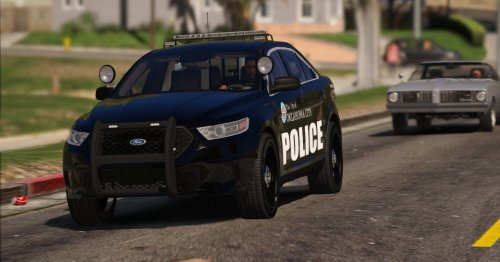 Wheres the reflective stripe at the trunk? 0/10 delete plz. Very great skin tho.
- 2 comments
- 2 reviews
-
Sweet thanks Prophet!
-
That’s true af I guess he is just very reluctant to pull the trigger and post it, but I guess we will never no the true real answer.
-
I know why it has never came out I have heard from prophet there was threats the rip the model the day it would have come out the car is basically done and he does not put it on his server because the can easily get it there.
-
Mine already in gta v just needs touch up lets go to pms now.
-
Would you want to work on it together?
-
Haha thats funny cuz i'm in the process of converting it as well.
-
My problem is its like i can not even sign in.
-
I am having the same problem
-
Yeah its not to hard just do what he said and it worked for me for all my cars that I have been making.
-
It is almost done but I could send you the skin for the cvpi and explorer
-
The Explorer and cvpi are out but the Taurus is mine and so are the skins.
-
So something like this?
-
Did what you said and it worked thanks so much dude!



.png.763bd089e69c70eb7b8dfa90594f6e10.png)