


bobafet101
Members
-
Joined
-
Last visited
Everything posted by bobafet101
-
-
-
-
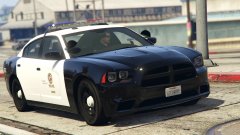 looks great, I can't wait.
 -
 I not sure on the file but it seems to be in mods/update/update.rpf/common/data
- 1,524 comments
- 85 reviews
-
fixed it. I seems when installing the .ovi with the openiv package installer it was not adding some needed file so I went in to the .ovi and just drag and dropped the files where they needed to be. Great mod by the way, gta should have been like this from the start.
- 1,524 comments
- 85 reviews
-
-
is anyone running this on the latest patch? I have tried everything and it just crashes when loading.
- 1,524 comments
- 85 reviews
-
-
-
-
-
-
.thumb.png.e88f1892e13ddb98db35e668d465c34b.png) AMAZING!!!!!!!!!!!!!! you are the best modder on gta sa, iv and v. No contest, keep up the good work:)
AMAZING!!!!!!!!!!!!!! you are the best modder on gta sa, iv and v. No contest, keep up the good work:)- 182 comments
- 44 reviews
-
The same thing happened to me. I now have a back up of Gta iv so that I don't have to reinstall it. Try installing it in a fresh version of the game. Hope this helps. Oh and make sure you have the right AdvancedHook.dll dsound.dll ScriptHook.dll im sure you already know but I thought I would mention it just in case.

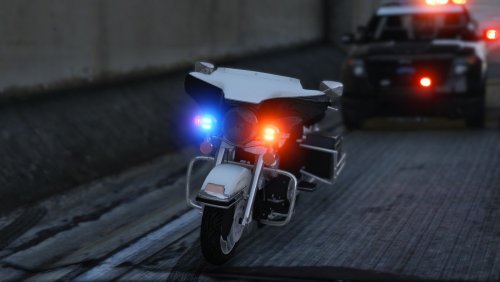
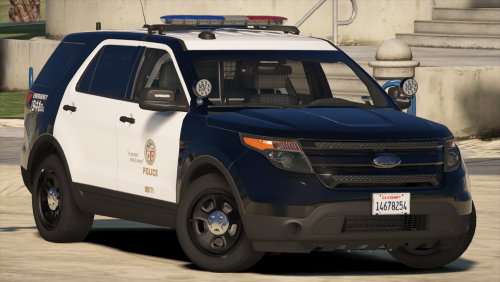
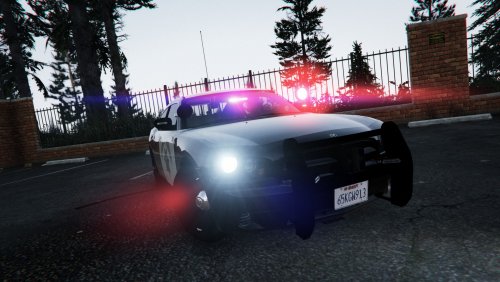

.thumb.png.e88f1892e13ddb98db35e668d465c34b.png)