matt1008
Members
-
Joined
-
Last visited
Everything posted by matt1008
-
The second one looks right did you put script hook and advance hook and dsound I'm sorry u have to turn Ai els sp off and Ai els mp off sorry if I don't make this clear
-
What does it say when it crash to fix this go into your els.ini and go to the bottom and where it say delayflash_ai mpturn that to off and the delayflash_ai sp turn that too off and make sure the number in the Ai range match for example 0 And 0 hope this helps you to get it working
-
 it looks good
 -
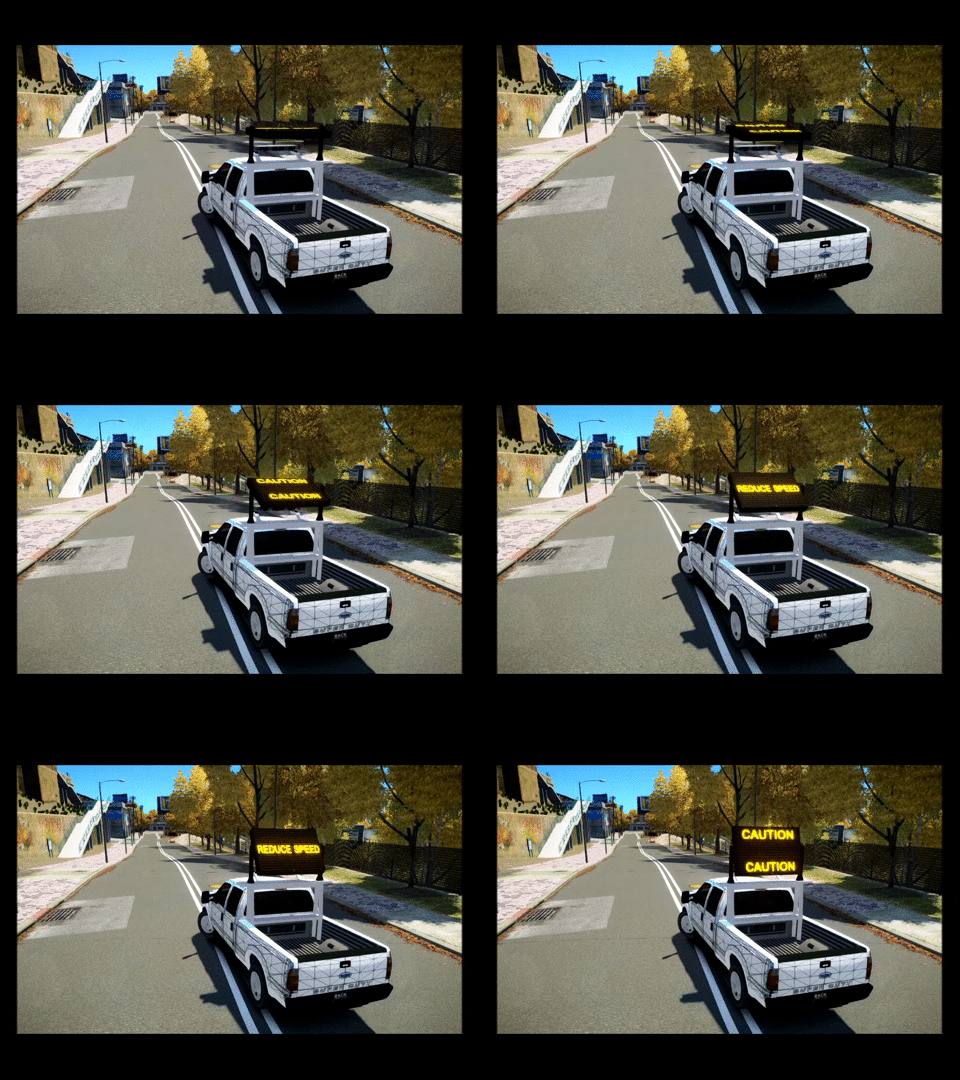 cool
cool -
Thanks for keeping me update
-
is rockstar social club getting fixed to were i can log in
-
i think it could be the servers
-
http://www.lcpdfr.com/files/file/5773-vision-v1-enb-105-final/
-
-
-
-
I have this error too it might be the servers
-
 Can my pc run this enb
 -
Do I use Els 8.5 or 8.0 is this system good to run this enb windows 7 64 8 producers 4.00 16 gb of ram 1Tb harddrive nividia gtx 780 3 gb
-
-
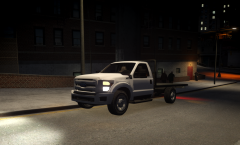 Yes
Yes -
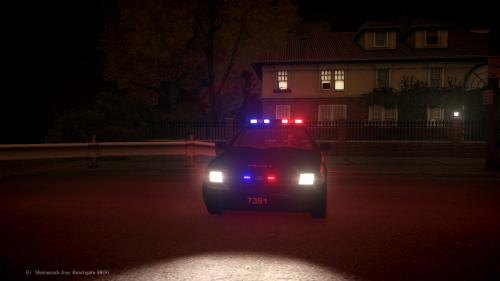 Ok thanks for letting me know
 -
Yes I have the same issues
-
Is this els v8.0 or els v8.5
-
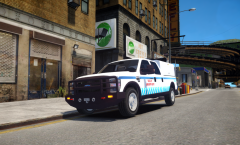 Yes
Yes -
 Yes it looks good
 -
Did u do all the textures
-
Do u have stored tetxures checked and make sure that the export type is gta Iv and if soo uncheck that
-
Do u use lcpdfr 1.1
-
Just change this and the game should load with no crash