



ac455
Members
-
Joined
-
Last visited
Everything posted by ac455
-
Awesome! I was about to write I also found the fix. Slightly different to yours, I moved the GTAVLauncher, PlayGTAV, and GTAVLanguageSelect from the vanilla version and put them in the old 2944 version. I left the old GTA5.exe there and everything is working as normal again.
-
I've been doing the same thing as you with updates, use a vanilla folder for updates and them move back to the LSPDFR install. I'm getting the same 7002.1 error on the launcher with my version, 2944. Same issue when I switch to my Liberty City version which is an even older version, 2845. But, when I move back to the vanilla folder, it launches. I have a feeling with the new update there is something missing on the older versions that the launcher is looking for. Still looking for a solution, but might just have to spend a day trying to update everything if nothing new arises soon.
-
Ticket Time only works correctly on a game resolution of 1920x1080 or 1600x900. Any other resolution the text will not line up with the images correctly.
-
Try and launch GTA 4 as an administrator, in the log file it shows that it cannot access "LCPD First Responce.dll"
-
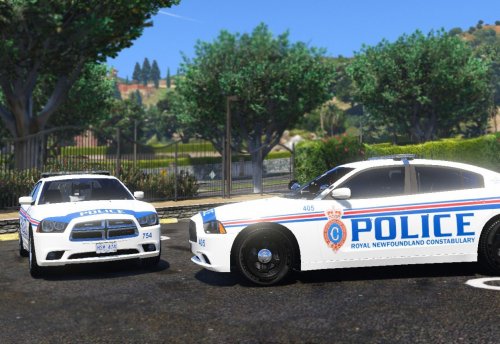 One suggestion, I know that the RNC used very little to no Crown Vic's but could you make a RNC skin for a CVPI? That would be greatly appreciated.
- 4 comments
- 3 reviews
-
-
-
-
-


