
prez423
Members
-
Joined
-
Last visited
Everything posted by prez423
-
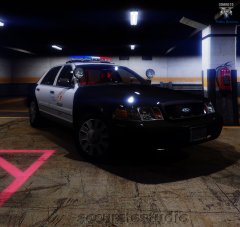 Is it just me or does it look like the side mirror is actually showing whats behind the vehicle?
 -
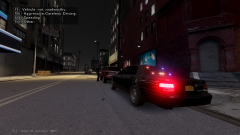 I wished you would release this car, it makes a perfect unmarked New Liberty State Police vehicle.
 -
Am I the only one that is experiencing a major FPS drop when I installed the vehicles from this pack?
- 65 comments
- 22 reviews
-
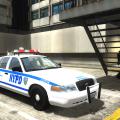 To get it to work you have to go into the els file and and set EnableArrowBoard to EnableArrowBoard= both, but when you raise the highraisers on this model and go to put them back down they just keep rotating around and around.
- 36 comments
- 12 reviews
-
-
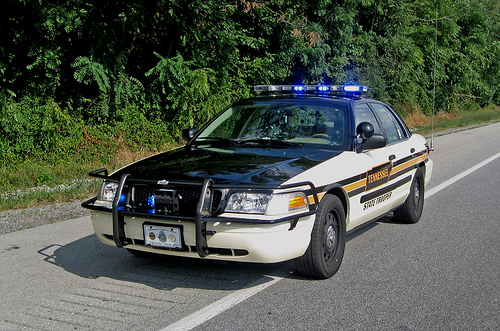
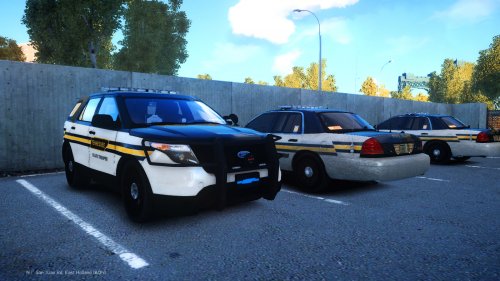 I have noticed something wrong with the cvpi lighting setup, you have the drivers side rear deck light mapped to use use the same color as extra5 on the rear of the light bar. THP has an orange light on their primaries where you have extra5 and extra6 on the rear of the light bar and all the rest of the lights are blue. It should look like this when you have your primaries on and secondaries off while all other lights on vehicle are blue:
- 17 comments
- 6 reviews
-
I've been wanting a pack like this ever since LCPDFR first came out, I LOVE IT!!!
- 17 comments
- 6 reviews
-
Best tutorial on this sight. It boosted my fps from being anywhere between 25-35 to now being anywhere between 50-60
-
Looks great it just needs to have a different light bar to be more realistic to THP. The one KevinDV made for Gumps' Alabama State Patrol Crown Vic would be perfect, http://www.lcpdfr.com/files/file/7282-alabama-state-patrol-crown-vic-by-gump/?tab=comments#comment-53642 .
- 18 comments
- 7 reviews
-
-

- 1
-