


D. Kaye
Members
-
Joined
-
Last visited
Everything posted by D. Kaye
-
It works, no more nothing, Just Poor Quality Stuff might try it on Median
-
Yeah my Graphics card is 2 years old, i'm getting a new one in 2 months + i saw everything was on High so i put it all on Low and it's the same. gonna re-start the game now. see if that helps.
-
Specs: Processor: AMD Athlon™ II X2 245 Processor 2.90 GHz Memory (RAM): 4.00GB System type: 32-bit Edit: Graphics: NVIDIA GeForce GTS 250 Approx Total Memory 2415 MB Display mode: 1920 X 1080 (32bit) (59Hz) Monitor: LG D2342P (HDMI)
-
Deleted "Stupidity"
-
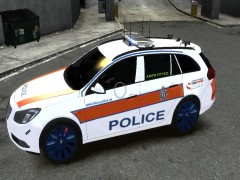 never mind i just saw your post on his Page
 -
You On his Facebook Page?
-
Hi i get this Problem where when i'm playing the game the Buildings go so do other cars Cars and people stop Spawning, i don't know where i'm driving? could you help me, is it a Car i Downloaded and added to the game or my Computer? Edited: it's only started happening a few weeks ago so i re installed the game and it was Ok for a little bit, but then it came back.
-
i Really want this game, getting it soon thought Can't Wait! it's so good!
-
Mine never used to work for a bit but it does now.
-
This Britishpolicemods Model of the insignia?
-
If you want the Jacket Download this; http://www.mediafire.com/?v0abkdm391a7x32 It Has That Jacket on there and more. it will be Under Uniforms but if you want anything else Like the police Bat it's on there and some Met Police Cars. Enjoy.

