LCPD_FRS 911
Members
-
Joined
-
Last visited
Everything posted by LCPD_FRS 911
-
-
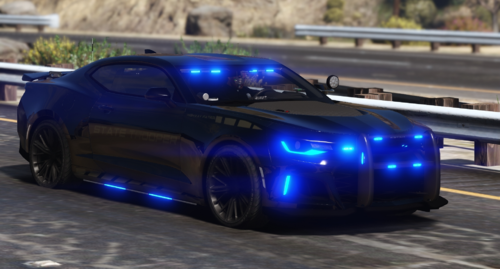 Hey, all the lights work fine but i seem to have problem with all those addon unmarked vehicles, they just dont have any siren and just regular radio, also i installed through the lennys.
- 64 comments
- 1 review
-
 link????
 -
-
Hey very nice car but, i have a problem, when i see this car from long way, or get closer, i see like the els is on for every police car, but when i get to the other els car, the lights will turn off, they just all are on, no lighting mode, help anyone??
- 6 comments
- 3 reviews
-
yeah same here, but i found it from playerped directory, and replaced the texture, i still cant toggle the vest from trainer ''special1'' components
- 22 comments
- 15 reviews
-
- LCPD
- Traffic
- Officer
- Traffic Officer
-
Tagged with:
-
I open componentpeds, but theres nothing named as ''suse_diff_000_a_uni'' in any cop or traffic officers ''.wtd'' file :P
- 22 comments
- 15 reviews
-
- LCPD
- Traffic
- Officer
- Traffic Officer
-
Tagged with:
-
-
-
From the album: Cars and stuff
-
-
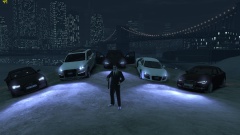
From the album: Cars and stuff
Made some screenshots with my audis hehe -
-
As soon as i place these .ddl files, then gta iv crashes, do i have to be only on steam to install els or will it work on cd too? - Redownloaded GTAIV from Steam - Created a new folder in C:Program Files called "Rockstar Games" - Copied the 'Grand Theft Auto IV' folder from steamapps to the new Rockstar Games folder - Installed trainer & dsound.dll & SparkIV - Tested = Still Crashes :,(