The most awesome GTA police mods.
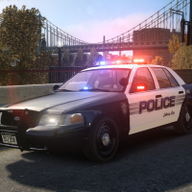
Turning the world of Grand Theft Auto upside down, LSPDFR and LCPDFR are some of the most sophisticated game modifications ever made, allowing you to be a cop in both GTA V and GTA IV.
On top of this, our members have built an amazing community over the years that's packed full of outstanding content. From vehicle modifications and custom mission scripts, to graphics enhancements and just about every police, fire and medical paintjob imaginable, there's something for everyone at LCPDFR.com.
Latest News
The latest news from the GTA police modding community.


It's a little late to say the least, but we're excited to announce that the first public version of our police mod for Red Dead Redemption 2, RDR First Response (RDRFR), is now available for download.
This first version of RDRFR puts the power of the law into your hands for the first time since Rockstar's flagship title arrived on PC. Working in conjunction with our Patreon supporters and testers, we've built a number of core features into the mod for you to enjoy with the ability to arrest suspects, go on duty and request backup in a manner similar to LSPDFR for GTA V.
Featured Content
-
EUP 9.11 & RollCall Roadmap
It has been a while since I posted a proper development update here, so I wanted to share a quick overview of what is currently being worked on.The next release will upgrade the EUP core files to version 9.11.1 and introduce a substantial collection of new clothing, equipment, badges, ranks and props.The update will also establish a new equipment system supporting jackets, under-jackets and body armor, with compatible PTT and bodycam configurations. Automatic pedsalternatevariations.meta support and numerous model and texture improvements.This core update represents the first phase of a larger roadmap:EUP Core Files 9.11.1Redesigned EUP Menu betaRoll Call integration with LSPDFRRoll Call is intended to connect uniform and equipment preparation more naturally with the beginning of an LSPDFR patrol, making the process of going on duty feel more structured and immersive.I’ve published the complete roadmap, additional details and more in-game screenshots here:https://www.patreon.com/alex_ashfold/posts/eup-development-167319597Featured by Cyan -
Post in Your best LSPDFR 0.4 screenshots?
The @lspdfrofficial Instagram is back!After more than five years without any new posts, we've officially returned with weekly-ish uploads, kicking things off last Friday as part of our effort to revitalise our Instagram page. It has been fantastic to see your screenshots in the gallery and the various media threads that many of you have created and contributed to over the years.We want to give your creations the recognition they deserve and introduce them to a wider audience, whether they're long-time LSPDFR users or people discovering the community for the first time through their interest in LEO roleplay or GTA modifications.From now on, we'll be regularly showcasing some of the incredible screenshots and media created by the community—including content from this thread and beyond—on our Instagram page.If you haven't already, give us a follow at @lspdfrofficial and check out our latest post, featuring BunBoHue's showcase of Riverside Sheriff's Office (RSO) deputies gearing up for their weekend shift.We look forward to seeing your uploads!Featured by Gan Ceann -
Rage Plugin Hook Log Analyzer
Stop squinting at your logRPH Log Analyzer is a free Windows tool that reads your RagePluginHook.log and explains, in plain English, what may be causing your GTA V / LSPDFR crashes and errors—and what to try next.Select your log file, or drag it onto RPHLogAnalyzer.exe, to receive:A clear verdict at the topA prioritised What to fix listExpandable technical details for deeper investigationCrash forensics, including fiber attribution and exception informationNo more guessing or pasting walls of log text into forum threads.Join our Discord for support, beta testing and updates: http://discord.gg/burnsieshideoutView our privacy-safe community stats: https://www.rphlogs.com/stats9000+ logs analyzed and countingRequirementsWindows 10 or later, 64-bitMicrosoft WebView2 RuntimeAlready installed on most Windows 10 and 11 computersIf it is missing, the app offers to open Microsoft’s download pageNo separate .NET installation requiredThe application is fully self-containedShareable reportsCreate an encrypted link that you can send to a friend, support team or developer.Choose whether to include:The analysis onlyThe analysis and your full RagePluginHook.logShared reports expire after seven days. Anyone with the complete link can view the report.Sharing is optional and must be enabled in Settings.System checkThe optional System check performs a read-only inspection of your PC and GTA V installation. It never changes or repairs files.It checks around 20 common problem areas, including:.NET FrameworkVisual C++ runtimesWindows media componentsMemory and pagefile configurationAvailable storageCore RAGE Plugin Hook and LSPDFR filesCloud-synchronised installation pathsGTA V compatibility and security settingsAny relevant problems are added to your report and prioritised alongside the log analysis.Mods & plugins scanThe Mods & plugins scan is included with System check when your GTA V folder is available.It can detect problems such as:LSPDFR plugins installed in the wrong folderMissing plugin dependenciesBroken or unreadable DLL filesDuplicate plugin installationsConfiguration problemsDLC and dlclist.xml mismatchesDamaged or outdated mod archivesExcessively long file pathsFor example, it can identify an LSPDFR plugin installed in Plugins instead of Plugins\LSPDFR.Your GTA V folder can be detected from a log or selected manually in Settings.Crash forensicsTechnical details are available when you want to investigate further, including:Fiber attributionException informationRelevant log evidenceExpandable diagnostic rowsFull technical findingsRun a check without a logYou can run System check directly from the start screen without opening a RagePluginHook.log.Enable System check and select your GTA V folder in Settings to include the Mods & plugins scan.Setup snapshotsCreate local snapshots of your GTA V installation and compare them later to see what changed.This can help identify files that were:AddedRemovedUpdatedMovedSnapshots remain on your computer and are optional.Language supportRPH Log Analyzer supports 20 languages:English, German, French, Spanish and PortugueseItalian, Polish, Dutch, Russian and UkrainianTurkish, Czech, Swedish, Danish and FinnishRomanian, Hungarian, Japanese, Korean and ChineseHelp improve translations join our Discord: http://discord.gg/burnsieshideoutPrivacy and online featuresYou remain in control of the app’s optional features.Enabled by default:Online plugin checkupAnonymous usage statisticsThese can be disabled in Settings.Disabled until you enable them:System checkMods & plugins scanSharingSetup snapshotsSystem check and setup snapshots run locally. Sharing only occurs when you choose to create a link.AI help chatGet live, one-on-one help with your crash from an AI assistant that has already read your report.Click AI help on any analysis to receive a one-time code, then redeem it in our Discord server. The bot opens a private thread where an AI assistant — trained on LSPDFR and RAGE Plugin Hook troubleshooting - already knows your log excerpt, detected versions, plugin checkup results and System check findings before you type a word.In your private thread you can:Ask follow-up questions about your crash in plain EnglishDrop in a fresh RagePluginHook.log after trying a fix, and the assistant re-reads itRate each answer as helpful or not, so the assistant keeps improvingGet step-by-step fixes without waiting for a human to come onlineGood to know:Your log excerpt is sanitized on your PC before it leaves - usernames, emails and credentials are stripped out - then sanitized again by the serverYou'll be asked to accept the Terms of Service before your first chat; conversations are logged, stored and used to improve the assistantAll messages pass through automated content moderationChat transcripts are automatically deleted after 30 daysThe AI provides automated guidance - review its advice and back up files before making changesAI help is available directly from the report toolbar whenever the feature is live. Nothing is ever sent unless you click the button.Try it in our Discord: http://discord.gg/burnsieshideoutSupport note:Please note: Due to increased usage of this application, support is now provided exclusively through Discord. To request assistance, join our server and open a support ticket: http://discord.gg/burnsieshideoutFeatured by SuperPyroManiac -
pdComp - Police Computer
Join the Discord Community for tech support and updatesNew Feature Showcase:pdComp — Police Computer for LSPDFRA full police computer for LSPDFR with live records from Policing Redefined or Stop The Ped.pdComp adds a police laptop and field tablet to GTA V. Check people and vehicles, file reports, issue citations, review court cases, track BOLOs, and use built-in traffic tools from one system.New in v0.4.2Added configurable LSPDFR callouts for active vehicle BOLOs and outstanding court warrants.BOLO encounters can feature an abandoned vehicle, a compliant driver, or a vehicle pursuit.Warrant subjects may surrender, flee, or resist, with charge severity and prior history influencing their behavior.Added voiced watch-supervisor radio audio for BOLO and warrant assignments, updates, prior-contact warnings, and resolutions.Citations can now include officer-selected enhancements such as school-zone and work-zone conditions that adjust fines, points, and court-appearance requirements.Ped Lookup can now submit arrest-warrant requests using the charge catalog. Approved requests enter the same warrant-service system as failure-to-appear and failure-to-pay warrants.Outstanding court warrants and their recorded reasons now appear directly on matching Ped Lookup profiles.Expanded the public add-on API with detached ped and vehicle record lookups, collected-record searches, prior-history snapshots, and deeper paperwork, court, and call-context data.Core FeaturesPolice laptop with movable windows, snapping, app icons, and wallpaperField tablet for use while on footPed and vehicle checks with live records, mugshots, and physical ID cardsCitations, arrest reports, print previews, and saved historyEvidence-linked charges and court resultsCourt hearings, sentencing, appeals, warrants, and federal casesReport Center for incident, use-of-force, vehicle damage, crash, death, and custom reportsDispatch window with live call details and active BOLOsSaved vehicle BOLOs with ALPR-style alertsStandalone ALPR plate reader and speed radarOptional NPCAI and Grammar Police supportMouse, keyboard, and controller supportLight and dark themes with support for 1080p, 1440p, 4K, and wide screensEditable charge, citation, and report filesRecords SupportpdComp requires either Policing Redefined or Stop The Ped.Policing Redefined supports shared records, arrest sync, tested evidence, traffic-stop data, transport requests, and radio BOLO alerts. Stop The Ped supplies document status, search results, and found breath, drug, and weapon test results.DownloadsMost players only need pdComp v0.4.3. The Developer SDK is a separate download intended for mod makers building pdComp add-ons.Newtonsoft.Json is built into pdComp. No separate Newtonsoft download or fallback installation is required.Current Versionv0.4.3Featured by SuperPyroManiac -
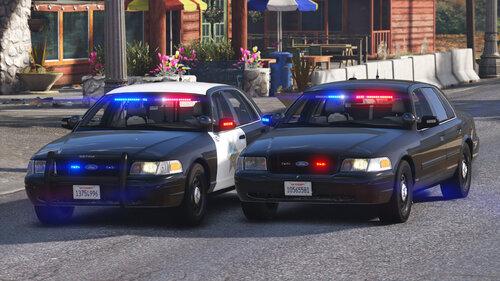
2010 Ford Crown Victoria Police Interceptor - BCSO Slicktop and Unmarked
A California-inspired non-ELS slicktop Blaine County Sheriff's Office Ford Crown Victoria Police Interceptor with Code 3 Supervisor and Wingman interior lights. Includes a marked slicktop and an unmarked version.Marked and detective versions:Vehicle Slots: bcsocvpi10s and bcsocvpi10u (Add-On)Lighting Equipment: Code 3 Supervisor and WingmanDLS Support: DLS v2.1 (optional)Multiple Liveries: SupportedNotesThis modification requires the game to be run with DirectX 11.Required mods:SirenSetting Limit Adjuster: Required for 32 siren support. If not installed, some lights will never flash. Also adds additional siren setting IDs to minimize the risk of conflicts.Recommended mods:DLS (Dynamic Lighting System) v2.1 or newer: Light stages, siren controls and more. Only light stage 3 with simplified patterns will be available when not using DLS.Siren Fixes: Allows using the sheriff siren slots with DLS that are used in the default DLS configuration of this file.Improved Emergency Lights: A modified visualsettings.dat file to increase emergency light brightness. Not necessary if a different graphics mod with brighter lights is used.Better License PlatesCode 3 Mastercom B SirenExtra components:extra 2: Spotlights (Slicktop: always on by default)extra 3: Spotlight cutout driver door (spawns with extra 2 by default)extra 4: Spotlight cutout passenger door (spawns with extra 2 by default)extra 5: Pushbar (Slicktop: always on by default; Unmarked: always off by default)extra 6: Trunk Ford badge (Slicktop: always off by default; Unmarked: always on by default)extra 7: Driver side mirror light (always on by default)extra 8: Passenger side mirror light (always on by default)extra 9: Partition (Slicktop: always on by default; Unmarked: always off by default)extra 10: RadarInstallationInstallation with Lenny's Mod Loader (LML) is recommended. Refer to the included readme.pdf for detailed instructions. Terms of useYou may replace or edit textures and create and redistribute liveries of your own using the provided template.When using this modification in a public multiplayer server, a link to this file must be provided for your users.You may not modify any model files. You may not use any assets for other modifications. You may not redistribute this archive or its contents, including any edited versions.If you'd like to follow progress on my projects and download all of mods and assets, feel free to join my Discord server: https://discord.gg/9mJpfUCFeatured by Cyan




.png.aa39d1f3c6b50bf743eaa4ff76065d32.png)